12:08

12:09
12:09
wb.xlhyqq.com/x/
12:10
docker run -d -p 8080:8080 --name xianyu-auto-reply --privileged=true registry.cn-shanghai.aliyuncs.com/zhinian-software/xianyu-auto-reply:1.0
19:10
10:20
12:51
10:00
shell:startup
14:54
159.138.142.169
18:26
pre[class*="language-"] {
      background: #2d2d2d !important;
      color: #f8f8f2 !important;
      padding: 10px;
      border-radius: 10px;
      overflow-x: auto;
      margin-top: 8px;
      font-size: 13px;
      white-space: pre-wrap;
      word-wrap: break-word;
      max-height: 400px;
    }
17:22
pk8kKC4abUsTueuqEzQqxX6IF8aG0OsfOBNbzrYSEWo=
17:27
173 446 354 服务器
17:28
MC60H-DWHD5-H80U9-6V85M-8280D
18:31
173 446 356 服务器
16:54
gpedit.msc
16:55
ipconfig/all
17:19
# 创建数据目录
mkdir -p xianyu-auto-reply

# 一键启动容器
docker run -d \
  -p 8080:8080 \
  -v $PWD/xianyu-auto-reply/:/app/data/ \
  --name xianyu-auto-reply \
  --privileged=true \
  registry.cn-shanghai.aliyuncs.com/zhinian-software/xianyu-auto-reply:1.0

# 访问系统
# http://localhost:8080
16:58
# 1. 克隆项目
git clone https://github.com/zhinianboke/xianyu-auto-reply.git
cd xianyu-auto-reply
# 2. 一键部署
./docker-deploy.sh
# 3. 访问系统
# http://localhost:8080
git clone https://github.com/zhinianboke/xianyu-auto-reply.git
cd xianyu-auto-reply
# 2. 一键部署
./docker-deploy.sh
# 3. 访问系统
# http://localhost:8080
18:20
# 1. 克隆项目
git clone https://github.com/zhinianboke/xianyu-auto-reply.git
cd xianyu-auto-reply
# 2. 安装依赖
pip install -r requirements.txt
# 3. 安装Playwright浏览器(商品搜索功能需要)
playwright install chromium
# 4. 启动系统
python Start.py
# 5. 访问系统
# http://localhost:8080
git clone https://github.com/zhinianboke/xianyu-auto-reply.git
cd xianyu-auto-reply
# 2. 安装依赖
pip install -r requirements.txt
# 3. 安装Playwright浏览器(商品搜索功能需要)
playwright install chromium
# 4. 启动系统
python Start.py
# 5. 访问系统
# http://localhost:8080
18:23
ssh Timx@192.168.0.123 5666
14:18
version: '3.8'

services:
  xianyu-auto-reply:
    image: registry.cn-shanghai.aliyuncs.com/zhinian-software/xianyu-auto-reply:1.0
    container_name: xianyu-auto-reply
    restart: always
    ports:
      - "8080:8080"
    volumes:
      - ./xianyu-auto-reply:/app/data
    privileged: true
    environment:
      - TZ=Asia/Shanghai
    network_mode: bridge
services:
xianyu-auto-reply:
image: registry.cn-shanghai.aliyuncs.com/zhinian-software/xianyu-auto-reply:1.0
container_name: xianyu-auto-reply
restart: always
ports:
- "8080:8080"
volumes:
- ./xianyu-auto-reply:/app/data
privileged: true
environment:
- TZ=Asia/Shanghai
network_mode: bridge
17:33
version: '3.8'
services:
xianyu-auto-reply:
image: registry.cn-shanghai.aliyuncs.com/zhinian-software/xianyu-auto-reply:1.0
container_name: xianyu-auto-reply
restart: always
ports:
- "8080:8080"
volumes:
- ./xianyu-auto-reply:/app/data
privileged: true
environment:
- TZ=Asia/Shanghai
network_mode: bridge
飞牛nas成功
services:
xianyu-auto-reply:
image: registry.cn-shanghai.aliyuncs.com/zhinian-software/xianyu-auto-reply:1.0
container_name: xianyu-auto-reply
restart: always
ports:
- "8080:8080"
volumes:
- ./xianyu-auto-reply:/app/data
privileged: true
environment:
- TZ=Asia/Shanghai
network_mode: bridge
飞牛nas成功
18:03
18:10
version: '3.8'
services:
xianyu-auto-reply:
image: registry.cn-shanghai.aliyuncs.com/zhinian-software/xianyu-auto-reply:1.0
container_name: xianyu-auto-reply
restart: always
ports:
- "8080:8080"
volumes:
- ./xianyu-auto-reply:/app/data
privileged: true
environment:
- TZ=Asia/Shanghai
network_mode: bridge
services:
xianyu-auto-reply:
image: registry.cn-shanghai.aliyuncs.com/zhinian-software/xianyu-auto-reply:1.0
container_name: xianyu-auto-reply
restart: always
ports:
- "8080:8080"
volumes:
- ./xianyu-auto-reply:/app/data
privileged: true
environment:
- TZ=Asia/Shanghai
network_mode: bridge
18:11
version: '3.8'
services:
xianyu-auto-reply:
image: registry.cn-shanghai.aliyuncs.com/zhinian-software/xianyu-auto-reply:1.0
container_name: xianyu-auto-reply
restart: always
ports:
- "8080:8080"
volumes:
- ./xianyu-auto-reply:/app/data
privileged: true
environment:
- TZ=Asia/Shanghai
network_mode: bridge
18:12
18:28
p04y
10:13
10:13
sunpanel 导航
22:21
16:02
13552031584
10:01
10:01
10:21
AutoCAD
10:37
```
11:17
11111
11:17
17:51
08:54
基于飞牛os用docker compose部署一个存储切片m3u8的可视化页面,上传的切片支持返回直连,让外界内网穿透访问并播放视频
11:05
基于飞牛os用docker compose部署一个存储切片m3u8的可视化页面,上传的切片支持返回直连,让外界内网穿透访问并播放视频,token支持外部对接上传,所有功能需要登入账号密码其他我没想到的问题你可自主搜索发挥
11:09
在飞牛os上,用docker compose部署一个存储切片m3u8的可视化页面,上传的切片支持返回直连,让外界内网穿透访问并播放视频,项目支持生成token让外部对接上传,所有功能需要登入账号密码其他我没想到的问题你可自主搜索发挥
11:22
在飞牛os上,用docker compose部署一个存储切片m3u8的可视化页面,上传的切片返回直连m3u8,让外界内网穿透访问并播放视频,项目支持生成token让外部对接上传,所有功能需要登入账号密码
11:23
用php部署一个存储切片m3u8的可视化页面,上传的切片返回直连m3u8,让外部访问并播放视频,项目支持生成token让外部对接上传,所有功能需要登入账号密码
11:25

15:31

15:31
16:20
Timx@192.168.36.130
09:38
sudo -i
09:38
ssh Timx@192.168.36.130
10:03
cd /vol1/1000/ts
10:03
Timx@.
10:51
Access denied.
12:49
# 查看 www 目录及文件权限
ls -la www/

# 修复权限(允许读取和执行)
sudo chmod -R 755 www/  # 递归设置权限
sudo chown -R $USER:$USER www/  # 确保当前用户拥有所有权
12:49
ssh Timx@192.168.0.116
11:39
方法 2:如果方法 1 失败(可能是纯 Debian 系统)
bash
# 添加Debian专用的PHP源
echo "deb https://packages.sury.org/php/ $(lsb_release -sc) main" | sudo tee /etc/apt/sources.list.d/sury-php.list

# 添加源的GPG密钥
wget -qO - https://packages.sury.org/php/apt.gpg | sudo apt-key add -

# 更新源列表
sudo apt-get update
13:40
三、重新安装 PHP 8.0 及 FPM
bash
# 安装PHP 8.0核心组件和FPM
sudo apt-get install -y php8.0 php8.0-fpm
# 安装必要的扩展(视频上传代码需要)
sudo apt-get install -y php8.0-cli php8.0-common php8.0-zip php8.0-curl
# 验证安装
php -v # 应显示PHP 8.0.x版本信息
bash
# 安装PHP 8.0核心组件和FPM
sudo apt-get install -y php8.0 php8.0-fpm
# 安装必要的扩展(视频上传代码需要)
sudo apt-get install -y php8.0-cli php8.0-common php8.0-zip php8.0-curl
# 验证安装
php -v # 应显示PHP 8.0.x版本信息
13:40
# 安装PHP 8.0核心组件和FPM
sudo apt-get install -y php8.0 php8.0-fpm
# 安装必要的扩展(视频上传代码需要)
sudo apt-get install -y php8.0-cli php8.0-common php8.0-zip php8.0-curl
# 验证安装
php -v # 应显示PHP 8.0.x版本信息
sudo apt-get install -y php8.0 php8.0-fpm
# 安装必要的扩展(视频上传代码需要)
sudo apt-get install -y php8.0-cli php8.0-common php8.0-zip php8.0-curl
# 验证安装
php -v # 应显示PHP 8.0.x版本信息
13:41
四、启动并设置 PHP-FPM 开机自启
bash
# 启动服务
sudo systemctl start php8.0-fpm
# 设置开机自启
sudo systemctl enable php8.0-fpm
# 检查服务状态
sudo systemctl status php8.0-fpm
bash
# 启动服务
sudo systemctl start php8.0-fpm
# 设置开机自启
sudo systemctl enable php8.0-fpm
# 检查服务状态
sudo systemctl status php8.0-fpm
13:42
15:02
/vol1/1000/www
15:03
#!/bin/bash

# 脚本名称: nginx.sh
# 作者: Brian
# 版本: 1.2
# 描述: 此脚本用于在飞牛系统上快速配置Nginx网站服务,支持PHP和MySQL。
# 使用方法:将脚本文件放在网站根目录,运行bash nginx.sh,根据提示设置网站名称和端口即可

# 网站配置模块
configure_website() {
    # 配置网站 #
    WebLocal=$PWD  # 网站根目录

    # 请求用户输入
    read -p "请输入网站名称(建议英文,例如:test):" WebName
	while true; do
		read -p "请输入网站端口(例如:8091):" Web_PORT

		# 检查端口是否为数字
		if ! [[ "$Web_PORT" =~ ^[0-9]+$ ]]; then
			echo "错误:端口号必须为数字,请重新输入。"
			continue
		fi

		# 检查端口范围
		if [ "$Web_PORT" -lt 1 ] || [ "$Web_PORT" -gt 65535 ]; then
			echo "错误:端口号必须在 1 到 65535 之间,请重新输入。"
			continue
		fi

		# 检查端口是否被占用
		if ss -tuln | grep -q ":$Web_PORT"; then
			echo "错误:端口 $Web_PORT 已被占用,请选择其他端口。"
			continue
		fi

		# 如果所有检查通过,退出循环
		break
	done

    # 修改权限
    sudo chown -R www-data:www-data $WebLocal
    sudo chmod -R 755 $WebLocal

    # 创建Nginx配置文件
    cat > /etc/nginx/sites-available/$WebName <<EOF
server {
    listen $Web_PORT default_server;
    listen [::]:$Web_PORT default_server;

    root $WebLocal;
    index index.php index.html index.htm;

    server_name _;

    location / {
        try_files \$uri \$uri/ =404;
    }

	# 配置 PHP 支持
    location ~ \.php$ {
        include snippets/fastcgi-php.conf;
        fastcgi_pass unix:/run/php/php8.2-fpm.sock;
        fastcgi_param SCRIPT_FILENAME \$document_root\$fastcgi_script_name;
        include fastcgi_params;
    }

    # 禁止访问 .htaccess 文件
    location ~ /\.ht {
        deny all;
    }
}
EOF

    # 创建符号链接
    sudo rm -f /etc/nginx/sites-enabled/$WebName  # 删除已存在的符号链接
    sudo ln -s /etc/nginx/sites-available/$WebName /etc/nginx/sites-enabled/

    # 检查Nginx配置
    sudo nginx -t
    if [ $? -ne 0 ]; then
        echo "错误:Nginx 配置检查失败,请检查配置文件。"
        exit 1
    fi

    # 重启Nginx
    sudo systemctl restart nginx

    # 创建网站信息文件
    INFO_FILE="${WebLocal}/website_info"
    echo "网站名称: $WebName" > "$INFO_FILE"
    echo "网站端口: $Web_PORT" >> "$INFO_FILE"
    echo "网站根目录: $WebLocal" >> "$INFO_FILE"
    echo "创建时间: $(date)" >> "$INFO_FILE"
    chmod 644 "$INFO_FILE"

    echo "配置完成,网站已启动。"
    echo "访问地址:http://<服务器IP>:$Web_PORT"
    echo "网站信息已保存到: $INFO_FILE"
}

# 检查 Nginx 是否已经在运行
if systemctl is-active --quiet nginx; then
    echo "Nginx 已经在运行,跳过更新和升级步骤,直接配置网站。"
    configure_website
    exit 0
else
    echo "Nginx 未运行,开始检查和安装..."
    # 更新系统包列表
    echo "正在更新系统包列表..."
    sudo apt update

    # 升级已安装的包
    echo "正在升级已安装的包..."
    sudo apt upgrade -y

    # 检查是否已安装 nginx
    if ! command -v nginx &> /dev/null; then
        echo "Nginx 未安装,正在安装 Nginx..."

		while true; do
			read -p "请输入 Nginx 监听端口(例如:8090):" Nginx_PORT

			# 检查端口是否为数字
			if ! [[ "$Nginx_PORT" =~ ^[0-9]+$ ]]; then
				echo "错误:端口号必须为数字,请重新输入。"
				continue
			fi

			# 检查端口范围
			if [ "$Nginx_PORT" -lt 1 ] || [ "$Nginx_PORT" -gt 65535 ]; then
				echo "错误:端口号必须在 1 到 65535 之间,请重新输入。"
				continue
			fi

			# 检查端口是否被占用
			if ss -tuln | grep -q ":$Nginx_PORT"; then
				echo "错误:端口 $Nginx_PORT 已被占用,请选择其他端口。"
				continue
			fi

			# 如果所有检查通过,退出循环
			break
		done

echo "端口 $Nginx_PORT 可用,继续配置 Nginx..."

        sudo apt install nginx -y

	# 修改 Nginx 配置文件监听端口
		NGINX_CONF="/etc/nginx/sites-available/default"
		if [ -f "$NGINX_CONF" ]; then
			echo "修改 Nginx 配置文件以监听 $Nginx_PORT 端口..."
			sudo sed -i "s/80 default_server/$Nginx_PORT default_server/g" "$NGINX_CONF"
		else
			echo "Nginx 配置文件 $NGINX_CONF 不存在,请检查路径。"
			exit 1
		fi
    else
        echo "Nginx 已安装,跳过安装。"
    fi

    # 检查是否已安装 php-fpm
    if ! dpkg -l | grep -q php8.2-fpm; then
        echo "php8.2-fpm 未安装,正在安装 php8.2-fpm..."
        sudo apt install php8.2-fpm -y
    else
        echo "php8.2-fpm 已安装,跳过安装。"
    fi

    # 检查是否已安装 php-mysql
    if ! dpkg -l | grep -q php-mysql; then
        echo "php-mysql 未安装,正在安装 php-mysql..."
        sudo apt install php-mysql -y
    else
        echo "php-mysql 已安装,跳过安装。"
    fi

    # 启动 Nginx 和 php8.2-fpm
    sudo systemctl start nginx
    sudo systemctl start php8.2-fpm

    # 设置 Nginx 和 php8.2-fpm 开机自启
    sudo systemctl enable nginx
    sudo systemctl enable php8.2-fpm

    # 查询 Nginx 和 php8.2-fpm 状态
    echo "Nginx 状态:"
    sudo systemctl status nginx --no-pager

    echo "php8.2-fpm 状态:"
    sudo systemctl status php8.2-fpm --no-pager

    # 配置网站
    configure_website
fi
15:14
b8c189eaf1675aed179977de394863c8
16:43
方案 2:修改站点专属配置(更推荐,不影响全局)
如果你的项目在 /etc/nginx/sites-available/ 下有单独配置(比如默认的 default 文件),优先修改这个,避免影响其他站点:

进入站点配置文件夹(这一步 cd 是对的):
bash
cd /etc/nginx/sites-available/

查看文件夹内的配置文件(确认你的站点配置名,通常是 default):
bash
ls  # 列出所有文件,会看到类似 default、your-site 等文件名

编辑站点配置文件(以 default 为例,若你的文件名不同,替换成实际名称):
bash
sudo vim default  # 或 sudo nano default

添加参数到 server { ... } 块内:
找到 server { ... } 块(每个站点配置的核心),在里面添加大文件限制参数:
nginx
server {
    listen 80;
    server_name 你的域名或IP;  # 原有配置
    root /var/www/你的项目目录;  # 原有配置

    # 新增:大文件上传限制(放在 server 块内任意位置,推荐开头)
    client_max_body_size 500M;
    client_body_timeout 1800s;
    client_header_timeout 1800s;

    # 其他原有配置(如 location / { ... } 等,不要删除)
}

保存并退出(同方案 1 的保存步骤)。
第三步:验证配置并重启 Nginx
检查配置是否有误(关键步骤,避免修改错误导致 Nginx 启动失败):
bash
sudo nginx -t

若提示 nginx: configuration file /etc/nginx/nginx.conf test is successful,说明配置正确;
若提示错误,按错误信息修改(比如括号不匹配、参数拼写错误)。
重启 Nginx 使配置生效:
bash
sudo systemctl restart nginx


确认 Nginx 启动正常:
bash
sudo systemctl status nginx


看到 active (running) 说明重启成功。
18:18
ssh Timx@192.168.1.4
11:32
hndh2025
11:33
/vol1/1000/www/ts
11:47
Timx@.
11:47
ssh Timx@192.168.1.5
13:05
user www-data;
worker_processes auto;
pid /run/nginx.pid;
error_log /var/log/nginx/error.log;
include /etc/nginx/modules-enabled/*.conf;

events {
	worker_connections 768;
	# multi_accept on;
}

http {

	##
	# Basic Settings
	##

	sendfile on;
	tcp_nopush on;
	types_hash_max_size 2048;
	# server_tokens off;

	# server_names_hash_bucket_size 64;
	# server_name_in_redirect off;

	include /etc/nginx/mime.types;
	default_type application/octet-stream;

	##
	# SSL Settings
	##

	ssl_protocols TLSv1 TLSv1.1 TLSv1.2 TLSv1.3; # Dropping SSLv3, ref: POODLE
	ssl_prefer_server_ciphers on;

	##
	# Logging Settings
	##

	access_log /var/log/nginx/access.log;

	##
	# Gzip Settings
	##

	gzip on;

	# gzip_vary on;
	# gzip_proxied any;
	# gzip_comp_level 6;
	# gzip_buffers 16 8k;
	# gzip_http_version 1.1;
	# gzip_types text/plain text/css application/json application/javascript text/xml application/xml application/xml+rss text/javascript;

	##
	# Virtual Host Configs
	##

	include /etc/nginx/conf.d/*.conf;
	include /etc/nginx/sites-enabled/*;
}


#mail {
#	# See sample authentication script at:
#	# http://wiki.nginx.org/ImapAuthenticateWithApachePhpScript
#
#	# auth_http localhost/auth.php;
#	# pop3_capabilities "TOP" "USER";
#	# imap_capabilities "IMAP4rev1" "UIDPLUS";
#
#	server {
#		listen     localhost:110;
#		protocol   pop3;
#		proxy      on;
#	}
#
#	server {
#		listen     localhost:143;
#		protocol   imap;
#		proxy      on;
#	}
#}
14:13
sudo nano /etc/nginx/sites-available/ts
14:32
/etc/nginx/nginx.conf
15:02
sudo nano /etc/nginx/nginx.conf
15:02
17:13
bash <(curl -fsSL https://vd.xlhyqq.com/x/install.sh)
23:34
curl -fsSL https://vd.xlhyqq.com/x/install.sh -o install.sh
bash install.sh
bash install.sh
23:47
系统版本 发布时间 硬件支持范围 主要新功能 支持状态
macOS Catalina 10.15.7 (19H15) 2019 年 MacBook (2015+),iMac (2012+),Mac Pro (2013+) - 彻底淘汰 32 位应用
- iTunes 拆分为 Music/TV/Podcasts
- Sidecar(iPad 当副屏) 已停止更新
macOS Big Sur 11.7.10 (20G1427) 2020 年 MacBook (2015+),MacBook Air (2013+),MacBook Pro (2013+),iMac (2014+),Mac mini (2014+),Mac Pro (2013+) - 全新 UI 风格(类似 iOS)
- 首个支持 Apple Silicon (M1)
- 控制中心 仅安全更新
macOS Monterey 12.7.4 (21H1123) 2021 年 MacBook (2016+),MacBook Air (2015+),MacBook Pro (2015+),iMac (2015+),Mac mini (2014+),Mac Pro (2013+) - 通用控制 (Universal Control)
- 快捷指令 (Shortcuts)
- AirPlay to Mac 仅安全更新
macOS Ventura 13.7.5 (22H527) 2022 年 MacBook (2017+),MacBook Air (2018+),MacBook Pro (2017+),iMac (2017+),Mac mini (2018+),Mac Pro (2019+),iMac Pro (2017) - 舞台管理器 (Stage Manager)
- 连续互通相机 (iPhone 当 Mac 摄像头)
- 系统设置 UI 改版 最新安全更新中
macOS Sonoma 14.7.5 (23H527) 2023 年 MacBook Air (2018+),MacBook Pro (2018+),iMac (2019+),Mac mini (2018+),Mac Pro (2019+),Mac Studio (2022+) - 桌面小组件 (Widget)
- 游戏模式 (Game Mode)
- Safari 用户配置文件
- 改进视频会议效果 最新正式版
macOS Sequoia 15.4 (24E248) 2024 年 预计仅支持 2019+ Intel 和所有 Apple Silicon(M 系列) - iPhone 镜像 (iPhone Mirroring)
- Apple Intelligence (AI 功能, 限新设备)
- 多屏幕小组件优化
macOS Catalina 10.15.7 (19H15) 2019 年 MacBook (2015+),iMac (2012+),Mac Pro (2013+) - 彻底淘汰 32 位应用
- iTunes 拆分为 Music/TV/Podcasts
- Sidecar(iPad 当副屏) 已停止更新
macOS Big Sur 11.7.10 (20G1427) 2020 年 MacBook (2015+),MacBook Air (2013+),MacBook Pro (2013+),iMac (2014+),Mac mini (2014+),Mac Pro (2013+) - 全新 UI 风格(类似 iOS)
- 首个支持 Apple Silicon (M1)
- 控制中心 仅安全更新
macOS Monterey 12.7.4 (21H1123) 2021 年 MacBook (2016+),MacBook Air (2015+),MacBook Pro (2015+),iMac (2015+),Mac mini (2014+),Mac Pro (2013+) - 通用控制 (Universal Control)
- 快捷指令 (Shortcuts)
- AirPlay to Mac 仅安全更新
macOS Ventura 13.7.5 (22H527) 2022 年 MacBook (2017+),MacBook Air (2018+),MacBook Pro (2017+),iMac (2017+),Mac mini (2018+),Mac Pro (2019+),iMac Pro (2017) - 舞台管理器 (Stage Manager)
- 连续互通相机 (iPhone 当 Mac 摄像头)
- 系统设置 UI 改版 最新安全更新中
macOS Sonoma 14.7.5 (23H527) 2023 年 MacBook Air (2018+),MacBook Pro (2018+),iMac (2019+),Mac mini (2018+),Mac Pro (2019+),Mac Studio (2022+) - 桌面小组件 (Widget)
- 游戏模式 (Game Mode)
- Safari 用户配置文件
- 改进视频会议效果 最新正式版
macOS Sequoia 15.4 (24E248) 2024 年 预计仅支持 2019+ Intel 和所有 Apple Silicon(M 系列) - iPhone 镜像 (iPhone Mirroring)
- Apple Intelligence (AI 功能, 限新设备)
- 多屏幕小组件优化
00:16
🔹 1. 发布时间 & 支持周期
macOS Catalina (10.15, 2019年发布)
最后一个支持 Intel 仅64位 的系统,不再支持 32 位应用。
目前已停止官方安全更新(除非特例)。
macOS Big Sur (11, 2020年发布)
首次大改 UI(类似 iOS/iPadOS 风格)。
支持 Apple Silicon (M1 芯片) 的首个系统。
macOS Monterey (12, 2021年发布)
引入 通用控制 (Universal Control)、快捷指令 (Shortcuts)。
加强 M1 支持。
macOS Ventura (13, 2022年发布)
新功能:舞台管理器 (Stage Manager)、连续互通相机 (Continuity Camera)。
停止对 Intel 一些老机型支持。
macOS Sonoma (14, 2023年发布)
新功能:桌面小组件(Widget)、游戏模式 (Game Mode)。
Safari 用户配置文件、多项安全增强。
macOS Sequoia (15, 2024年发布)
新功能:iPhone 镜像 (iPhone Mirroring)、AI 辅助功能 (Apple Intelligence,部分机型)。
多屏幕小组件支持更完善。
🔹 2. 硬件支持
Catalina:支持 2012-2013 年的 Mac。
Big Sur:最低支持到 2013/2014 款 Mac。
Monterey:最低支持到 2014/2015 款 Mac。
Ventura:砍掉了 2014–2016 部分 Intel Mac,要求至少 2017。
Sonoma:只支持 2018 年后的 Mac。
Sequoia:预计继续砍 Intel,主要面向 Apple Silicon。
🔹 3. 功能差异
Catalina:32 位彻底淘汰;iTunes 被拆成 Apple Music、Apple TV、Apple Podcasts。
Big Sur:UI 重新设计,首个 M1 芯片支持。
Monterey:通用控制、快捷指令。
Ventura:舞台管理器、连续互通相机。
Sonoma:桌面小组件、游戏模式。
Sequoia:iPhone 镜像、AI 功能(仅限新设备)。
🔹 4. 安全 & 更新
新系统(Ventura 及以后) 有更快的 快速安全响应更新 (Rapid Security Response)。
老系统(Catalina/Big Sur) 基本只收最后的安全补丁,不再新增功能。
macOS Catalina (10.15, 2019年发布)
最后一个支持 Intel 仅64位 的系统,不再支持 32 位应用。
目前已停止官方安全更新(除非特例)。
macOS Big Sur (11, 2020年发布)
首次大改 UI(类似 iOS/iPadOS 风格)。
支持 Apple Silicon (M1 芯片) 的首个系统。
macOS Monterey (12, 2021年发布)
引入 通用控制 (Universal Control)、快捷指令 (Shortcuts)。
加强 M1 支持。
macOS Ventura (13, 2022年发布)
新功能:舞台管理器 (Stage Manager)、连续互通相机 (Continuity Camera)。
停止对 Intel 一些老机型支持。
macOS Sonoma (14, 2023年发布)
新功能:桌面小组件(Widget)、游戏模式 (Game Mode)。
Safari 用户配置文件、多项安全增强。
macOS Sequoia (15, 2024年发布)
新功能:iPhone 镜像 (iPhone Mirroring)、AI 辅助功能 (Apple Intelligence,部分机型)。
多屏幕小组件支持更完善。
🔹 2. 硬件支持
Catalina:支持 2012-2013 年的 Mac。
Big Sur:最低支持到 2013/2014 款 Mac。
Monterey:最低支持到 2014/2015 款 Mac。
Ventura:砍掉了 2014–2016 部分 Intel Mac,要求至少 2017。
Sonoma:只支持 2018 年后的 Mac。
Sequoia:预计继续砍 Intel,主要面向 Apple Silicon。
🔹 3. 功能差异
Catalina:32 位彻底淘汰;iTunes 被拆成 Apple Music、Apple TV、Apple Podcasts。
Big Sur:UI 重新设计,首个 M1 芯片支持。
Monterey:通用控制、快捷指令。
Ventura:舞台管理器、连续互通相机。
Sonoma:桌面小组件、游戏模式。
Sequoia:iPhone 镜像、AI 功能(仅限新设备)。
🔹 4. 安全 & 更新
新系统(Ventura 及以后) 有更快的 快速安全响应更新 (Rapid Security Response)。
老系统(Catalina/Big Sur) 基本只收最后的安全补丁,不再新增功能。
00:16
#!/bin/bash

# 脚本名称: nginx.sh
# 作者: Brian
# 版本: 1.5
# 描述: 飞牛系统快速配置Nginx网站,支持PHP、MySQL和HLS跨域,增加上传大小限制
# 使用方法:放在网站根目录,运行 bash nginx.sh

configure_website() {
    WebLocal=$PWD  # 网站根目录

    read -p "请输入网站名称(建议英文,例如:test):" WebName
    while true; do
        read -p "请输入网站端口(例如:8091):" Web_PORT
        if ! [[ "$Web_PORT" =~ ^[0-9]+$ ]]; then
            echo "错误:端口号必须为数字,请重新输入。"
            continue
        fi
        if [ "$Web_PORT" -lt 1 ] || [ "$Web_PORT" -gt 65535 ]; then
            echo "错误:端口号必须在 1 到 65535 之间,请重新输入。"
            continue
        fi
        if ss -tuln | grep -q ":$Web_PORT"; then
            echo "错误:端口 $Web_PORT 已被占用,请选择其他端口。"
            continue
        fi
        break
    done

    # 设置上传大小限制(可根据需要修改这些值)
    UPLOAD_MAX_SIZE="100M"
    POST_MAX_SIZE="100M"
    MEMORY_LIMIT="256M"

    sudo chown -R www-data:www-data $WebLocal
    sudo chmod -R 755 $WebLocal

    # 删除默认站点,避免端口冲突
    sudo rm -f /etc/nginx/sites-enabled/default

    # 创建Nginx配置文件
    cat > /etc/nginx/sites-available/$WebName <<EOF
server {
    listen $Web_PORT default_server;
    listen [::]:$Web_PORT default_server;

    root $WebLocal;
    index index.php index.html index.htm;

    server_name _;

    # Nginx 上传限制
    client_max_body_size $UPLOAD_MAX_SIZE;
    client_body_buffer_size 16M;

    location / {
        try_files \$uri \$uri/ =404;
    }

    # PHP 支持
    location ~ \.php\$ {
        include snippets/fastcgi-php.conf;
        fastcgi_pass unix:/run/php/php8.2-fpm.sock;
        fastcgi_param SCRIPT_FILENAME \$document_root\$fastcgi_script_name;
        include fastcgi_params;

        # PHP 上传参数
        fastcgi_param PHP_VALUE "upload_max_filesize=$UPLOAD_MAX_SIZE
        post_max_size=$POST_MAX_SIZE
        memory_limit=$MEMORY_LIMIT";
    }

    # 禁止访问 .ht 文件
    location ~ /\.ht {
        deny all;
    }

    # HLS 跨域配置
    location ~* \.(m3u8|ts)$ {
        add_header Access-Control-Allow-Origin * always;
        add_header Access-Control-Allow-Methods 'GET, OPTIONS' always;
        add_header Access-Control-Allow-Headers 'Range' always;
        add_header Access-Control-Expose-Headers 'Content-Length, Content-Range' always;

        if (\$request_method = OPTIONS) {
            add_header Content-Length 0;
            add_header Content-Type text/plain;
            return 204;
        }

        try_files \$uri =404;
    }
}
EOF

    # 配置PHP上传限制
    PHP_INI_FILE="/etc/php/8.2/fpm/php.ini"
    if [ -f "$PHP_INI_FILE" ]; then
        sudo sed -i "s/^upload_max_filesize.*/upload_max_filesize = $UPLOAD_MAX_SIZE/" "$PHP_INI_FILE"
        sudo sed -i "s/^post_max_size.*/post_max_size = $POST_MAX_SIZE/" "$PHP_INI_FILE"
        sudo sed -i "s/^memory_limit.*/memory_limit = $MEMORY_LIMIT/" "$PHP_INI_FILE"
        echo "已更新PHP上传限制配置"
    else
        echo "警告:未找到PHP配置文件 $PHP_INI_FILE,PHP上传限制可能未生效"
    fi

    # 创建符号链接
    sudo ln -sf /etc/nginx/sites-available/$WebName /etc/nginx/sites-enabled/

    # 检查配置并重启服务
    sudo nginx -t && sudo systemctl restart nginx
    sudo systemctl restart php8.2-fpm

    # 保存网站信息
    INFO_FILE="${WebLocal}/website_info"
    echo "网站名称: $WebName" > "$INFO_FILE"
    echo "网站端口: $Web_PORT" >> "$INFO_FILE"
    echo "网站根目录: $WebLocal" >> "$INFO_FILE"
    echo "最大上传大小: $UPLOAD_MAX_SIZE" >> "$INFO_FILE"
    echo "创建时间: $(date)" >> "$INFO_FILE"
    chmod 644 "$INFO_FILE"

    echo "配置完成,网站已启动。"
    echo "访问地址:http://<服务器IP>:$Web_PORT"
    echo "最大上传限制:$UPLOAD_MAX_SIZE"
    echo "网站信息已保存到: $INFO_FILE"
}

# 安装和启动环境
install_env() {
    sudo apt update
    sudo apt upgrade -y

    # 安装 Nginx
    if ! command -v nginx &> /dev/null; then
        sudo apt install nginx -y
    fi

    # 安装 PHP-FPM
    if ! dpkg -l | grep -q php8.2-fpm; then
        sudo apt install php8.2-fpm -y
    fi

    # 安装 PHP MySQL 扩展
    if ! dpkg -l | grep -q php-mysql; then
        sudo apt install php-mysql -y
    fi

    # 启动并设置开机自启
    sudo systemctl enable nginx php8.2-fpm
    sudo systemctl start nginx php8.2-fpm
}

# 主逻辑
if systemctl is-active --quiet nginx; then
    echo "Nginx 已运行,直接配置网站。"
    configure_website
else
    echo "Nginx 未运行,开始安装和配置..."
    install_env
    configure_website
fi
10:15
<!DOCTYPE html>
<!-- saved from url=(0044)https://blog.twofei.com/1603/standalone.html -->
<html><head><meta http-equiv="Content-Type" content="text/html; charset=UTF-8">
<style>
.live-photo {
  position: relative;
  overflow: hidden;
  border-radius: var(--border-radius);
  max-width: min(400px, 100%);
  height: auto !important;
  margin: 1em auto;
  container-type: inline-size;
}
.live-photo .container {
  position: absolute;
  width: 100%;
  height: 100%;
}
.live-photo .container img, .live-photo .container video {
  position: absolute;
  width: 100%;
  height: 100%;
  object-fit: cover;
}
.live-photo .container img {
  transition: opacity 1s ease, transform 1s ease;
}
.live-photo .container video {
  transition: transform 1s ease;
}
.live-photo.zoom .container img, .live-photo.zoom .container video {
  transform: scale(1.1);
}
.live-photo.zoom .container img {
  opacity: 0;
}
.live-photo.zoom .icon img {
  animation: spin 5s linear infinite;
}
.live-photo .icon {
  display: inline-flex;
  align-items: center;
  padding: 2px;
  border-radius: var(--border-radius);
  position: relative;
  left: 10px;
  top: 10px;
  height: 22px;
  background-color: rgba(240, 255, 255, 0.6705882353);
  cursor: pointer;
  user-select: none;
}
.live-photo .icon img {
  width: 22px;
  height: 22px;
}
.live-photo .icon span {
  padding: 3px;
  color: #606060;
  font-size: 80%;
}
@container (max-width: 200px) {
  .live-photo .icon span {
    display: none;
  }
}
.live-photo .warning {
  padding: 4px 6px;
  margin: 10px;
  color: #9a6700;
  border-radius: var(--border-radius);
  position: absolute;
  left: 0;
  top: 40px;
  background-color: rgba(240, 255, 255, 0.6705882353);
  transition: opacity 0.5s linear;
}
.live-photo .warning.show {
  opacity: 1 !important;
  display: inline-block !important;
}
</style>
<script>
document.addEventListener('DOMContentLoaded', () => {
	document.querySelectorAll('.live-photo').forEach(livePhoto => {
		const container = livePhoto.querySelector('.container');
		const icon = livePhoto.querySelector('.icon');
		const video = container.querySelector('video');
		const image = container.querySelector('img');
		const warning = livePhoto.querySelector('.warning');

		// TODO 优化:等图片可用的时候再把视频显示出来,测试出现
		// 过视频比图片先加载完成,导致 flicker。

		// 尽可能修复 Safari 无法播放的问题
		// if (/WebKit/.test(navigator.userAgent)) {
		// NOTE: 为了避免预加载,不应该提前 load。
		// video.load();
		// }

		// fix: 鼠标进入 → 开始加载 → 鼠标离开(加载成功前) → 加载失败。
		let within = false;

		const start = async (e) => {
			e.stopPropagation();
			e.preventDefault();

			within = true;

			try {
				video.currentTime = 0;
				await video.play();
				livePhoto.classList.add('zoom');
			}
			catch(e) {
				console.log(e);
				if (within && e instanceof DOMException) {
					if (['NotAllowedError','AbortError'].includes(e.name)) {
						warning.innerText = '浏览器未允许视频自动播放权限,无法播放实况照片。';
					} else if (['NotSupportedError'].includes(e.name)) {
						warning.innerText = '视频未加载完成或浏览器不支持播放此视频格式。';
					} else {
						warning.innerText = `其它错误:${e}`;
					}
					warning.classList.add('show');
				}
			}
		};

		const leave = (e) => {
			livePhoto.classList.remove('zoom');
			warning.classList.remove('show');

			// await play() 可能一直卡住不返回。
			// 在 pause 之前设置,如果  await play() 还没
			// 成功返回,就会进入异常处理。
			within = false;

			video.pause();
		};

		icon.addEventListener('mouseenter',   start);
		icon.addEventListener('mouseleave',   leave);

		image.addEventListener('touchstart',  start);
		image.addEventListener('touchend',    leave);
		image.addEventListener('touchcancel', leave);

		video.addEventListener('ended', () => {
			livePhoto.classList.remove('zoom');
		});
	});
});
</script>
</head>
<body>
<div class="live-photo" style="width: 302px; height: 403px; aspect-ratio: 0.74937963;">
	<div class="container">
		<video src="1.mp4" playsinline="" preload="metadata"></video>
		<img src="./standalone_files/1.avif" alt="" width="302" height="403" loading="lazy">
	</div>
	<div class="icon">
		<img src="data:image/png;base64,iVBORw0KGgoAAAANSUhEUgAAAFAAAABQCAYAAACOEfKtAAAACXBIWXMAAAsTAAALEwEAmpwYAAAGvklEQVR4nO2ce4gVVRzHP7vr3dp1JfOFWWGvzXLLtXzTm95qURQVltrDIJI0LaKEkiAjDLW0gsRqe2FrEhT0R2gvFSmxNR/rHybbw0pLrXyUq1YbB74Dh8X2njMzd+7cdT4wMLN7zsyZ35zH73UuZGRkZGRkZGRkZBSH3kBPnZcD7wHzdF0JNAPv6LoMeBy4gaOcSuv8e+AnnXcBtgFrrHJbgLd13Qf4F1il625AI3ATRxGvAr8BfXX9FPC89f9qoKqD+pcC/XVeL4G+ouuuEuaxdCKqgHusYWqG4Hqge0z3P9sS+GNAG3AvnYg79FJPJ/CsU4HZGuqGW3WUHKcAV1vz1Axr2CXJPmAnJcjH6nWnF7kdFwIjdd4DGEqJcCXwBFBBeliqj1pHSnkBWCZVJI2MBl7Ks8IXleXS50pBhbhOi1qaRgim5+UoDZZLfzSLXVF5GPgTGExpcTJwESlgEvAtcBaliRkxs4Cr6ATUA9OBJbJUjLl3SIc5/1r/mwYMiumZA7Qyf0jCNAALY7hPNwlts17E52iWMGsituEyoB8JYlxKP+gFoiw45uV3WwL5GVgEjAfOl+2c09ELGAJMkONgu1VvFzA1BvXpzCStpaoI+tQAoMkSwKfAGE+VwghrLPC5dZ+vgNqQbSqX2fcdBWaQZRqF1b/26oW3xDR5Xwts1T336mOEYYZ6ckHZLrXFDOMwXpnDetEG+e7iwsyDb+re5hnjSCkTpbqE6XmH9YLGH1goZuoZh2S6+dJTHm7Tq1PDAM0vhRZeeyHuCTEnDpOF8nLcjeqvIWJ0NTwn+yZr2CbFW3rm2hD27jkKK8TKBDXoIc9606wFI845z2VODBaWB0gB5Vp9c55K8m69ROCdTpLRevZOz49nFsjVwAcUmemWnudDneLCm4D9Ojbpb77O0BVqw4OeAvxCXvVYOE92qPEy+7BZjXfVy0wMeAHwdwfmm/nf/HZx5Xyrv6m3kSJyvRpxt0edess8czGxKuXNNnUOAM8BwzX0zDFCseNWlVnmKETz7B0hXflVIfXdI3J8yOG7yLH8ApU3Nva5eT7MNpU1PdGF11Tex8o4A/jLSjFJnCVqtHEM5KNOQ/NAHuHZQmxVnYGOyn+blV/jqlCvjcu0MzrVJ57deb0abbwq+Zinsj5fe77qzHUoO1Rl11EkVmoV9FFId6nRQTpHRzSrrLECXBnhsTj0ttQZH6rjUqjLQ2jzB9Vol4k+8M7UeOqYgfclH8eorBn2Pnyjoygc7AQCXCk9MjKN0sxNTyzkEB7ucf+RCQzh2HhftmxFiEVkiMciYucIuqo9cxzKDiv2IkKIObBRjTZOCFc1ptXR2zNYU4SrGnOn2rIYv7jx78CzFIlpanSQOeqqlmzLI0QjvB9V1lgrLjSo/BTcOUGjziQOROZiufGNQuoTO2lTCMDFlMtZplyrBDpSC4s5RmnYBovTMkfPkCnzi+q49NaCMEQ27W2e9ZrVcBM9c6FSguvImXBYPS/nacdv8Gx7dcL+yw6HsQk9+lAnC2OjQgH7dD4nRC9aFcIORsPXHLFykqc5V2OpM8UI0gSurF9D9KY3lEsYG2PVmEc8601Vva0xpGDgqWi36NmTSQEm1/kz4ArPel2UMdCmoFRSLNYz14RQwS4HTiRF1Frmmgk5Fpon9aw/QiS5B45gk09dEEwm040h6o2xAuszExCeCaxfE6K+sZufUXZ/QTDeiX9CunnG6cXa5GOsiXnOC4btoRAqV2KYL3NzxFDjHmthCZN+caTVtsUatmF6Hko6N8p66qmVuzxQjldICD75fTkpyYGeFywYUTb2tMhgSITVsjTKQtavUMbATksAOxQAmig3fC9ZJ5U6HybHQINlngV63uQYtiz0cHS/xcJSBZ7LIt6nq4LeG0Ok+G6QnhnV5LrF0e2WeuokkEb57nbLeXBQFs06RdamxOgY6KuP8SVFYoycpy7hyLQyqZh7RqZKrSlG8lAUTpNaFVvmQRSOo/R4V0PXhEdTw0KtpGY1SzsmYerRtO0snS0fWlp75Gjl/AU/dpFq6vUDEK5paEkwV8P2AkqAxWpswYxyRy6xnB+VKfgJAq+k9NuttJD7IuwiisIWaQmp3aXu6gIzvfF1Ck8/ueIHWhHFKM6PVJCTrVpr7VhaF+PGvjrZyki3a9MPXnRaZsk8C/b83q+fgwqcAdXy7/0fo6xUuD5y1AaRv3Ltv4t9n0eaKGvnAFipTPxA/WmSW6nC+n+TVXe/9M1AYCZOfBdHMd0VMg14sd2upo8kxIDxjjk3GRkZGRkZGRkZGRSK/wDiCstGS04B5wAAAABJRU5ErkJggg==" class="no-zoom static" loading="lazy">
		<span>实况</span>
	</div>
	<div class="warning" style="opacity: 0;"></div>
</div>


</body></html>
10:05
#!/bin/bash

# 脚本名称: nginx.sh
# 作者: Brian
# 版本: 2.0
# 描述: 飞牛系统快速配置Nginx网站,支持PHP、MySQL和HLS跨域
#       新增停止/启动/删除/查看网站功能,新增MySQL和phpMyAdmin支持
# 使用方法:放在网站根目录,运行 bash nginx.sh

configure_website() {
    WebLocal=$PWD
    read -p "请输入网站名称(建议英文,例如:test):" WebName
    while true; do
        read -p "请输入网站端口(例如:8091):" Web_PORT
        if ! [[ "$Web_PORT" =~ ^[0-9]+$ ]]; then
            echo "错误:端口号必须为数字,请重新输入。"
            continue
        fi
        if [ "$Web_PORT" -lt 1 ] || [ "$Web_PORT" -gt 65535 ]; then
            echo "错误:端口号必须在 1 到 65535 之间,请重新输入。"
            continue
        fi
        if ss -tuln | grep -q ":$Web_PORT"; then
            echo "错误:端口 $Web_PORT 已被占用,请选择其他端口。"
            continue
        fi
        break
    done

    # 询问是否需要为该网站创建数据库
    read -p "是否需要为该网站创建MySQL数据库? [y/n] " create_db
    if [ "$create_db" = "y" ] || [ "$create_db" = "Y" ]; then
        create_database $WebName
    fi

    sudo chown -R www-data:www-data $WebLocal
    sudo chmod -R 755 $WebLocal

    sudo rm -f /etc/nginx/sites-enabled/default

    cat > /etc/nginx/sites-available/$WebName <<EOF
server {
    listen $Web_PORT default_server;
    listen [::]:$Web_PORT default_server;

    root $WebLocal;
    index index.php index.html index.htm;

    server_name _;

    client_max_body_size 1024M;

    location / {
        try_files \$uri \$uri/ =404;
    }

    location ~ \.php\$ {
        include snippets/fastcgi-php.conf;
        fastcgi_pass unix:/run/php/php8.2-fpm.sock;
        fastcgi_param SCRIPT_FILENAME \$document_root\$fastcgi_script_name;
        include fastcgi_params;
    }

    location ~ /\.ht {
        deny all;
    }

    location ~* \.(m3u8|ts)$ {
        add_header Access-Control-Allow-Origin * always;
        add_header Access-Control-Allow-Methods 'GET, OPTIONS' always;
        add_header Access-Control-Allow-Headers 'Range' always;
        add_header Access-Control-Expose-Headers 'Content-Length, Content-Range' always;

        if (\$request_method = OPTIONS) {
            add_header Content-Length 0;
            add_header Content-Type text/plain;
            return 204;
        }

        try_files \$uri =404;
    }
}
EOF

    sudo ln -sf /etc/nginx/sites-available/$WebName /etc/nginx/sites-enabled/
    sudo nginx -t && sudo systemctl restart nginx

    INFO_FILE="${WebLocal}/website_info"
    echo "网站名称: $WebName" > "$INFO_FILE"
    echo "网站端口: $Web_PORT" >> "$INFO_FILE"
    echo "网站根目录: $WebLocal" >> "$INFO_FILE"
    echo "创建时间: $(date)" >> "$INFO_FILE"
    chmod 644 "$INFO_FILE"

    echo "配置完成,网站已启动。"
    echo "访问地址:http://<服务器IP>:$Web_PORT"
    echo "网站信息已保存到: $INFO_FILE"
}

install_env() {
    sudo apt update
    sudo apt upgrade -y

    # 安装Nginx
    if ! command -v nginx &> /dev/null; then
        sudo apt install nginx -y
    fi

    # 安装PHP
    if ! dpkg -l | grep -q php8.2-fpm; then
        sudo apt install php8.2-fpm -y
    fi

    if ! dpkg -l | grep -q php-mysql; then
        sudo apt install php-mysql -y
    fi

    # 安装MySQL
    install_mysql

    # 安装phpMyAdmin
    install_phpmyadmin

    # 配置PHP
    PHP_INI="/etc/php/8.2/fpm/php.ini"
    sudo sed -i 's/^upload_max_filesize.*/upload_max_filesize = 1024M/' $PHP_INI
    sudo sed -i 's/^post_max_size.*/post_max_size = 1024M/' $PHP_INI
    sudo sed -i 's/^memory_limit.*/memory_limit = 1024M/' $PHP_INI

    sudo systemctl enable nginx php8.2-fpm mysql
    sudo systemctl restart nginx php8.2-fpm mysql
}

install_mysql() {
    if ! command -v mysql &> /dev/null; then
        echo "正在安装MySQL..."
        # 设置非交互式安装,设置root密码
        read -p "请设置MySQL root用户密码: " mysql_root_pass
        read -p "请再次输入MySQL root用户密码: " mysql_root_pass_confirm

        while [ "$mysql_root_pass" != "$mysql_root_pass_confirm" ]; do
            echo "两次输入的密码不一致,请重新输入"
            read -p "请设置MySQL root用户密码: " mysql_root_pass
            read -p "请再次输入MySQL root用户密码: " mysql_root_pass_confirm
        done

        # 保存MySQL密码到临时文件
        echo "mysql-server mysql-server/root_password password $mysql_root_pass" | sudo debconf-set-selections
        echo "mysql-server mysql-server/root_password_again password $mysql_root_pass" | sudo debconf-set-selections

        # 安装MySQL服务器
        sudo apt install mysql-server -y

        # 执行安全配置
        echo "正在进行MySQL安全配置..."
        mysql -u root -p"$mysql_root_pass" -e "ALTER USER 'root'@'localhost' IDENTIFIED WITH mysql_native_password BY '$mysql_root_pass';"
        mysql -u root -p"$mysql_root_pass" -e "DELETE FROM mysql.user WHERE User='';"
        mysql -u root -p"$mysql_root_pass" -e "DELETE FROM mysql.user WHERE User='root' AND Host NOT IN ('localhost', '127.0.0.1', '::1');"
        mysql -u root -p"$mysql_root_pass" -e "DROP DATABASE IF EXISTS test;"
        mysql -u root -p"$mysql_root_pass" -e "DELETE FROM mysql.db WHERE Db='test' OR Db='test\\_%';"
        mysql -u root -p"$mysql_root_pass" -e "FLUSH PRIVILEGES;"

        echo "MySQL安装和安全配置完成"
    else
        echo "MySQL已安装,跳过安装步骤"
    fi
}

install_phpmyadmin() {
    if [ ! -f /usr/share/phpmyadmin/index.php ]; then
        echo "正在安装phpMyAdmin..."

        # 非交互式配置phpMyAdmin
        sudo debconf-set-selections <<< "phpmyadmin phpmyadmin/dbconfig-install boolean true"
        sudo debconf-set-selections <<< "phpmyadmin phpmyadmin/app-password-confirm password "
        sudo debconf-set-selections <<< "phpmyadmin phpmyadmin/mysql/admin-pass password "
        sudo debconf-set-selections <<< "phpmyadmin phpmyadmin/mysql/app-pass password "
        sudo debconf-set-selections <<< "phpmyadmin phpmyadmin/reconfigure-webserver multiselect nginx"

        sudo apt install phpmyadmin php-mbstring php-zip php-gd php-json php-curl -y

        # 配置Nginx支持phpMyAdmin
        if [ ! -f /etc/nginx/conf-available/phpmyadmin.conf ]; then
            sudo tee /etc/nginx/conf-available/phpmyadmin.conf <<EOF
location /phpmyadmin {
    root /usr/share/;
    index index.php index.html index.htm;
    location ~ ^/phpmyadmin/(.+\.php)$ {
        try_files \$uri =404;
        root /usr/share/;
        fastcgi_pass unix:/run/php/php8.2-fpm.sock;
        fastcgi_index index.php;
        fastcgi_param SCRIPT_FILENAME \$document_root\$fastcgi_script_name;
        include /etc/nginx/fastcgi_params;
    }
    location ~* ^/phpmyadmin/(.+\.(jpg|jpeg|gif|css|png|js|ico|html|xml|txt))$ {
        root /usr/share/;
    }
}
EOF
            sudo ln -s /etc/nginx/conf-available/phpmyadmin.conf /etc/nginx/conf-enabled/
            sudo systemctl restart nginx
        fi

        echo "phpMyAdmin安装完成"
    else
        echo "phpMyAdmin已安装,跳过安装步骤"
    fi
}

create_database() {
    local db_prefix=$1
    local db_name="${db_prefix}_db"
    local db_user="${db_prefix}_user"

    # 生成随机密码
    local db_pass=$(openssl rand -base64 12)

    read -p "请输入MySQL root密码: " mysql_root_pass

    # 创建数据库和用户
    echo "正在为网站创建数据库..."
    mysql -u root -p"$mysql_root_pass" -e "CREATE DATABASE IF NOT EXISTS $db_name CHARACTER SET utf8mb4 COLLATE utf8mb4_unicode_ci;"
    mysql -u root -p"$mysql_root_pass" -e "CREATE USER IF NOT EXISTS '$db_user'@'localhost' IDENTIFIED BY '$db_pass';"
    mysql -u root -p"$mysql_root_pass" -e "GRANT ALL PRIVILEGES ON $db_name.* TO '$db_user'@'localhost';"
    mysql -u root -p"$mysql_root_pass" -e "FLUSH PRIVILEGES;"

    # 保存数据库信息到网站信息文件
    INFO_FILE="${WebLocal}/website_info"
    echo "数据库名称: $db_name" >> "$INFO_FILE"
    echo "数据库用户: $db_user" >> "$INFO_FILE"
    echo "数据库密码: $db_pass" >> "$INFO_FILE"
    echo "数据库主机: localhost" >> "$INFO_FILE"

    echo "数据库创建完成,信息已保存到网站信息文件"
    echo "数据库名称: $db_name"
    echo "数据库用户: $db_user"
    echo "数据库密码: $db_pass"
    echo "请妥善保存以上数据库信息!"
}

stop_website() {
    echo "正在停止网站服务..."
    sudo systemctl stop nginx
    sudo systemctl stop php8.2-fpm
    sudo systemctl stop mysql
    echo "网站服务已停止。"
}

start_website() {
    echo "正在启动网站服务..."
    sudo systemctl start nginx
    sudo systemctl start php8.2-fpm
    sudo systemctl start mysql
    echo "网站服务已启动。"
}

delete_website() {
    read -p "请输入要删除的网站名称:" WebName
    if [ -f /etc/nginx/sites-available/$WebName ]; then
        # 询问是否删除关联的数据库
        read -p "是否同时删除与该网站关联的数据库? [y/n] " delete_db
        if [ "$delete_db" = "y" ] || [ "$delete_db" = "Y" ]; then
            read -p "请输入MySQL root密码: " mysql_root_pass
            db_name="${WebName}_db"
            db_user="${WebName}_user"

            mysql -u root -p"$mysql_root_pass" -e "DROP DATABASE IF EXISTS $db_name;"
            mysql -u root -p"$mysql_root_pass" -e "DROP USER IF EXISTS '$db_user'@'localhost';"
            mysql -u root -p"$mysql_root_pass" -e "FLUSH PRIVILEGES;"
            echo "数据库 $db_name 及用户 $db_user 已删除"
        fi

        sudo rm -f /etc/nginx/sites-available/$WebName
        sudo rm -f /etc/nginx/sites-enabled/$WebName
        sudo nginx -t && sudo systemctl reload nginx
        echo "网站 $WebName 已删除(其他网站不受影响)。"
    else
        echo "未找到网站 $WebName 配置文件。"
    fi
}

list_websites() {
    echo "已配置的网站列表:"
    if [ -d /etc/nginx/sites-available ]; then
        ls -1 /etc/nginx/sites-available
    else
        echo "未找到 /etc/nginx/sites-available 目录。"
    fi

    # 显示数据库列表
    echo -e "\n已创建的数据库:"
    read -p "请输入MySQL root密码查看数据库列表: " mysql_root_pass
    mysql -u root -p"$mysql_root_pass" -e "SHOW DATABASES;" | grep -vE 'Database|information_schema|performance_schema|mysql|sys'
}

# 主菜单
echo "=========================="
echo "  Nginx 网站管理脚本"
echo "=========================="
echo "1) 配置网站"
echo "2) 安装环境并配置网站"
echo "3) 停止网站服务"
echo "4) 删除网站配置"
echo "5) 启动网站服务"
echo "6) 查看已配置网站列表"
echo "7) 单独安装MySQL数据库"
echo "8) 单独安装phpMyAdmin"
echo "=========================="
read -p "请选择操作 [1-8]: " choice

case $choice in
    1) configure_website ;;
    2) install_env; configure_website ;;
    3) stop_website ;;
    4) delete_website ;;
    5) start_website ;;
    6) list_websites ;;
    7) install_mysql ;;
    8) install_phpmyadmin ;;
    *) echo "无效选择" ;;
esac
17:58
/vol1/1000/www/hj
11:26
@旁人: -novid -nojoy -high -freq 240 +fps_max 0
02:15
12:13
12:12
/vol1/1000/www/sql
20:47
20:59
cd /vol1/1000/www/mysql
10:15
17:02
436 394 946
13:19
10:48
11:27
#!/bin/bash

# 获取用户输入的服务器备份名称
read -p "请输入服务器备份名称: " server_backup_name

# 确保用户输入了至少一个备份路径
while :; do
    echo "请输入要备份的文件目录(绝对路径),一行一个,回车结束:"
    while IFS= read -r line; do
        [[ -z "$line" ]] && break # 如果是空行则结束循环
        source_dirs+=("$line") # 将输入的路径添加到数组中
    done
    if [ ${#source_dirs[@]} -eq 0 ]; then
        echo "错误:必须设置至少一个备份路径。"
    else
        break
    fi
done

# 确保用户输入了定时时间
while :; do
    read -p "请输入自定义的cron时间格式(例如,每天凌晨2点为 0 2 * * *): " custom_cron_time
    if [[ -z "$custom_cron_time" ]]; then
        echo "错误:必须设置定时时间。"
    else
        break
    fi
done

# 设置WebDAV相关变量
WEBDAV_URL="http://127.0.0.1:5244/dav/阿里云盘/${server_backup_name}/"  #我自己的地址是  http://127.0.0.1:5244/dav/阿里云盘/
WEBDAV_USER="Alist账户"
WEBDAV_PASSWORD="Alist密码"

# 创建备份脚本
backup_script="/root/${server_backup_name}备份到webdav.sh"
cat << 'EOF' > "$backup_script"
#!/bin/bash

# 定义WebDAV相关变量
WEBDAV_URL="${WEBDAV_URL}"
WEBDAV_USER="${WEBDAV_USER}"
WEBDAV_PASSWORD="${WEBDAV_PASSWORD}"

EOF

# 为每个目录追加备份命令到脚本
for source_dir in "${source_dirs[@]}"; do
    DIR_NAME=$(basename "$source_dir")
    cat << EOF >> "$backup_script"
# 动态生成备份文件名,包含当前日期和时间
BACKUP_NAME="${DIR_NAME}-\$(date +%Y-%m-%d_%H-%M-%S).tar.gz"
BACKUP_PATH="/tmp/\$BACKUP_NAME"

# 压缩指定目录
tar -czf "\$BACKUP_PATH" "$source_dir"

# 上传到WebDAV
curl -T "\$BACKUP_PATH" -u \$WEBDAV_USER:\$WEBDAV_PASSWORD \$WEBDAV_URL

# 清理本地备份文件
rm "\$BACKUP_PATH"

EOF
done

# 替换变量占位符
sed -i "s|\${WEBDAV_URL}|$WEBDAV_URL|g" "$backup_script"
sed -i "s|\${WEBDAV_USER}|$WEBDAV_USER|g" "$backup_script"
sed -i "s|\${WEBDAV_PASSWORD}|$WEBDAV_PASSWORD|g" "$backup_script"

# 赋予执行权限
chmod +x "$backup_script"

# 设置cron作业
(crontab -l 2>/dev/null; echo "$custom_cron_time $backup_script") | crontab -

# 输出信息
echo "备份任务已设置,以下是所有信息。"
echo "需要备份路径: ${source_dirs[*]}"
echo "备份脚本路径: $backup_script"
echo "定时规则: $custom_cron_time"
13:48
{
    "code": "0",
    "isBlindBox": 0,
    "memberid": 0,
    "msg": "成功",
    "orderId": "dbe6c53ce06143deb7da04402d4e81da",
    "provinceid": "4057",
    "url": "https://unipayphone.wostore.cn/sitepay/member_pay.html?torder=bf33d5b4389d4a70837afdcbd1d28ae6&sign=bc0564d6e9d59f982f2268403227c2a8"
}
11:58
21:47

14:05

14:05
17:38
07:32
07:33
07:34
梵想SP510512G的颗粒
10:34
因此,9950X3D的总三级缓存容量为原生L3缓存和3D V-Cache的总和,即 64MB + 64MB = 128MB。加上它自带的16MB二级缓存,总共是144MB的缓存容量
00:05
08:32
08:33
08:32
08:26
23:18
08:37
22:31
23:15
23:22
17:13
18:02

10:45

16:01
shadowrocket://add/sub://aHR0cHM6Ly9wb2tlbGluay54bi0tNGdzdm1oNzRjd3hpLmNuL2FwaS92MS9jbGllbnQvc3Vic2NyaWJlP3Rva2VuPTQ1YjJjYmMyNWE2YjYyYWZiZDI5ZTgxYWJhNWFkMDMw?remark=%E5%AE%9D%E5%8F%AF%E6%A2%A6%E6%98%9F%E4%BA%91
09:53
09:54
杏雨梨云启动维护系统2025乙巳版之仲夏更新.rar
16:59
18:04

23:53

23:53

08:35

08:35

01:22

01:22

01:22
22:36
22:37
01:01
chenyaokeji1
17:09
embfrkdcfzsnecgc
17:51
## this is the all-in-one, standalone Discourse Docker container template
##
## After making changes to this file, you MUST rebuild
## /var/discourse/launcher rebuild app
##
## BE *VERY* CAREFUL WHEN EDITING!
## YAML FILES ARE SUPER SUPER SENSITIVE TO MISTAKES IN WHITESPACE OR ALIGNMENT!
## visit http://www.yamllint.com/ to validate this file as needed

templates:
  - "templates/postgres.template.yml"
  - "templates/redis.template.yml"
  - "templates/web.template.yml"
  - "templates/web.ratelimited.template.yml"
  ## Uncomment these two lines if you wish to add Lets Encrypt (https)
#   - "templates/web.ssl.template.yml"
#   - "templates/web.letsencrypt.ssl.template.yml"

## which TCP/IP ports should this container expose?
## If you want Discourse to share a port with another webserver like Apache or nginx,
## see https://meta.discourse.org/t/17247 for details
expose:
  - "52000:80"   # http
#   - "443:443" # https

params:
  db_default_text_search_config: "pg_catalog.english"

  ## Set db_shared_buffers to a max of 25% of the total memory.
  ## will be set automatically by bootstrap based on detected RAM, or you can override
  #db_shared_buffers: "256MB"

  ## can improve sorting performance, but adds memory usage per-connection
  #db_work_mem: "40MB"

  ## Which Git revision should this container use? (default: latest)
  #version: latest

env:
  LC_ALL: en_US.UTF-8
  LANG: en_US.UTF-8
  LANGUAGE: en_US.UTF-8
  # DISCOURSE_DEFAULT_LOCALE: en

  ## How many concurrent web requests are supported? Depends on memory and CPU cores.
  ## will be set automatically by bootstrap based on detected CPUs, or you can override
  #UNICORN_WORKERS: 3

  ## TODO: The domain name this Discourse instance will respond to
  ## Required. Discourse will not work with a bare IP number.
  DISCOURSE_HOSTNAME: 'b.xsv.me'

  ## Uncomment if you want the container to be started with the same
  ## hostname (-h option) as specified above (default "$hostname-$config")
  #DOCKER_USE_HOSTNAME: true

  ## TODO: List of comma delimited emails that will be made admin and developer
  ## on initial signup example 'user1@example.com,user2@example.com'
  DISCOURSE_DEVELOPER_EMAILS: '2506317561@qq.com'

  ## TODO: The SMTP mail server used to validate new accounts and send notifications
  # SMTP ADDRESS is required
  # WARNING: SMTP password should be wrapped in quotes to avoid problems
  DISCOURSE_SMTP_ADDRESS: smtp.qq.com
  #DISCOURSE_SMTP_PORT: 465
  DISCOURSE_SMTP_USER_NAME: 2506317561@qq.com
  DISCOURSE_SMTP_PASSWORD: "embfrkdcfzsnecgc"
  #DISCOURSE_SMTP_ENABLE_START_TLS: true           # (optional, default: true)
  #DISCOURSE_SMTP_DOMAIN: discourse.example.com    # (required by some providers)
  #DISCOURSE_NOTIFICATION_EMAIL: 2506317561@qq.com    # (address to send notifications from)
  #DISCOURSE_SMTP_OPENSSL_VERIFY_MODE: peer        # (optional, default: peer, valid values: none, peer, client_once, fail_if_no_peer_cert)
  #DISCOURSE_SMTP_AUTHENTICATION: plain            # (default: plain, valid values: plain, login, cram_md5)

  ## If you added the Lets Encrypt template, uncomment below to get a free SSL certificate
  #LETSENCRYPT_ACCOUNT_EMAIL: me@example.com

  ## The http or https CDN address for this Discourse instance (configured to pull)
  ## see https://meta.discourse.org/t/14857 for details
  #DISCOURSE_CDN_URL: https://discourse-cdn.example.com

  ## The maxmind geolocation IP account ID and license key for IP address lookups
  ## see https://meta.discourse.org/t/-/173941 for details
  #DISCOURSE_MAXMIND_ACCOUNT_ID: 123456
  #DISCOURSE_MAXMIND_LICENSE_KEY: 1234567890123456

## The Docker container is stateless; all data is stored in /shared
volumes:
  - volume:
      host: /var/discourse/shared/standalone
      guest: /shared
  - volume:
      host: /var/discourse/shared/standalone/log/var-log
      guest: /var/log

## Plugins go here
## see https://meta.discourse.org/t/19157 for details
hooks:
  after_code:
    - exec:
        cd: $home/plugins
        cmd:
          - git clone https://github.com/discourse/docker_manager.git

## Any custom commands to run after building
run:
  - exec: echo "Beginning of custom commands"
  ## If you want to set the 'From' email address for your first registration, uncomment and change:
  ## After getting the first signup email, re-comment the line. It only needs to run once.
  #- exec: rails r "SiteSetting.notification_email='info@unconfigured.discourse.org'"
  - exec: echo "End of custom commands"
19:30
/var/discourse/shared/standalone/backups/default
23:04
noreply@xsv.me
00:10
00:17
12:37
352271427
18:01
force_https
19:18
false
20:18
30 2 10
23:02
knng jzva ivjf xbau
23:18
【京东】https://3.cn/-2vlWhfO?jkl=@NE6jpEFaqAXv@ CA8680 「HKC 2K 220Hz高刷电竞显示器」
点击链接直接打开 或者复制文案打开京东
点击链接直接打开 或者复制文案打开京东
21:08
【京东】https://3.cn/2v-lYNmh?jkl=@I1HEd39IJfxL@ ZH1997 「HKC 24.5英寸2K 250Hz电竞显示器」
点击链接直接打开 或者复制文案打开京东
点击链接直接打开 或者复制文案打开京东
21:19
【京东】https://3.cn/2v-lYNmh?jkl=@I1HEd39IJfxL@ ZH1997 「HKC 24.5英寸2K 250Hz电竞显示器」
点击链接直接打开 或者复制文案打开京东
点击链接直接打开 或者复制文案打开京东
21:21
【京东】https://3.cn/-2vm0sCT?jkl=@F6J9nA1DHfZx@ ZH1997 「HKC 27英寸240Hz高刷电竞显示器」
点击链接直接打开 或者复制文案打开京东
点击链接直接打开 或者复制文案打开京东
21:28
【京东】https://3.cn/2v-m0VKo?jkl=@M3HO4A0NuBSm@ MF8335 「AOC 27英寸2K 180Hz电竞屏」
点击链接直接打开 或者复制文案打开京东
点击链接直接打开 或者复制文案打开京东
21:30
【京东】https://3.cn/2vm1r-YW?jkl=@T6HfN9eLpBdp@ ZH1997 「AOC 2K260Hz FastIPS电竞显示器」
点击链接直接打开 或者复制文案打开京东
点击链接直接打开 或者复制文案打开京东
21:33
【京东】https://3.cn/2v-m1QWo?jkl=@T4Vo80YKeKdo@ ZH1997 「AOC 23.8英寸 240Hz电竞显示器」
点击链接直接打开 或者复制文案打开京东
点击链接直接打开 或者复制文案打开京东
21:35
【京东】https://3.cn/-2vm2EmO?jkl=@Y2B7R1ucupGa@ MU5104 「AOC 23.8英寸 2K180Hz电竞显示器」
点击链接直接打开 或者复制文案打开京东
点击链接直接打开 或者复制文案打开京东
21:39
【京东】https://3.cn/2vm7-jZi?jkl=@W36rWFuYzIvF@ CA1393 「AOC 23.8英寸 260Hz电竞显示器」
点击链接直接打开 或者复制文案打开京东
点击链接直接打开 或者复制文案打开京东
21:58
【京东】https://3.cn/2-vm8fam?jkl=@VFY0Y405nDtF@ CA3576 「HKC 24.5英寸320Hz电竞显示器」
点击链接直接打开 或者复制文案打开京东
点击链接直接打开 或者复制文案打开京东
22:01
【京东】https://3.cn/2vma-fAp?jkl=@ADp6B8HcbqHE@ MU5104 「AOC 27英寸180Hz电竞小金刚」
点击链接直接打开 或者复制文案打开京东
点击链接直接打开 或者复制文案打开京东
22:09
1080x1920
22:13
livoke7677@moondyal.com
19:57
23:35
个人云盘系统
一个简单、美观、安全的PHP云盘系统,支持文件上传、下载、管理和直链分享。
✨ 特性
📤 简单上传 - 支持点击上传或拖拽上传,自动生成直链
🔗 直链分享 - 每个文件自动生成唯一直链,可直接访问下载
🔐 管理员系统 - 安全的登录认证,保护文件管理功能
⬇️ 快速下载 - 一键下载文件或通过直链直接下载
🗑️ 安全删除 - 通过删除码验证,防止误删
📊 文件管理 - 显示文件大小、上传时间、下载次数、直链
🎨 现代UI - 采用渐变色彩,简洁美观
📱 响应式设计 - 支持手机和桌面设备
🔒 安全防护 - CSRF保护、密码加密、安全验证
蓝奏云
https://xyz111.lanzoue.com/iaRUZ3c5i1uf
系统要求
• PHP 7.0 或更高版本
• MySQL 5.6 或更高版本
上传解压配置信息,点击安装即可使用
关键信息打码 求审核放过[泪]
一个简单、美观、安全的PHP云盘系统,支持文件上传、下载、管理和直链分享。
✨ 特性
📤 简单上传 - 支持点击上传或拖拽上传,自动生成直链
🔗 直链分享 - 每个文件自动生成唯一直链,可直接访问下载
🔐 管理员系统 - 安全的登录认证,保护文件管理功能
⬇️ 快速下载 - 一键下载文件或通过直链直接下载
🗑️ 安全删除 - 通过删除码验证,防止误删
📊 文件管理 - 显示文件大小、上传时间、下载次数、直链
🎨 现代UI - 采用渐变色彩,简洁美观
📱 响应式设计 - 支持手机和桌面设备
🔒 安全防护 - CSRF保护、密码加密、安全验证
蓝奏云
https://xyz111.lanzoue.com/iaRUZ3c5i1uf
系统要求
• PHP 7.0 或更高版本
• MySQL 5.6 或更高版本
上传解压配置信息,点击安装即可使用
关键信息打码 求审核放过[泪]
08:31
佬友你好。
直接用Win11Debloat这个项目吧,专门用于卸载win10或win11的预装应用。
https://github.com/Raphire/Win11Debloat
这个项目默认卸载(或不卸载)的软件列表在这里:
https://github.com/Raphire/Win11Debloat/wiki/App-Removal
使用前一定要先看项目说明,确定好需要卸载的预装应用。
除此之外,也可以关闭遥测和一些用不上的功能。
直接用Win11Debloat这个项目吧,专门用于卸载win10或win11的预装应用。
https://github.com/Raphire/Win11Debloat
这个项目默认卸载(或不卸载)的软件列表在这里:
https://github.com/Raphire/Win11Debloat/wiki/App-Removal
使用前一定要先看项目说明,确定好需要卸载的预装应用。
除此之外,也可以关闭遥测和一些用不上的功能。
09:24
[live_photo video="https://diy.xlhyqq.com/uploads/lp_6933fb4b0c5b1.mp4" img="https://diy.xlhyqq.com/uploads/lp_6933fb4449a75.webp"]
17:47

15:50
郑州市金水区丰庆路街道市场监督管理所
12:57
19:30
19:33
状态判定(严格按你说的)

涨价:昨天有价 & 今天有价 & 今天 > 昨天

跌价:昨天有价 & 今天有价 & 今天 < 昨天

新增:昨天没这个名字 & 今天有名字 & 今天有价

下架:昨天有这个名字 & 今天完全没这个名字

缺货:昨天有价 & 今天没价

不变:昨天有价 & 今天有价 & 相等
17:46
金水区东风路街道园田路与博颂路交叉口南180米
11:19
园田路24号院
11:23
直播间资料
三段式经营指南最新资料,各位及时查收:https://bytedance.larkoffice.com/docx/Hjw2dba4joh1ABxZLRZc77bFn3d 同学们课件已发,申请权限之后 老师会通过✅ https://hwao2tsqnpq.feishu.cn/slides/MDKms1CTXljoxCdEy9AcrHbjncg https://hwao2tsqnpq.feishu.cn/slides/C7m2spgYnl2734da05dc0IwVnQe https://hwao2tsqnpq.feishu.cn/slides/I9JhsnQFWldzpddPaKRc2fMwnOb
直播话术大全
https://hwao2tsqnpq.feishu.cn/drive/folder/IlUgfkBC7lIag9dbvDOcvMVWnsb
直播罗盘脑图
https://hwao2tsqnpq.feishu.cn/docx/XvVwdv8RCoNiTyxPgipcslpknLe
直播违禁词大全
https://hwao2tsqnpq.feishu.cn/docx/L7x6dWfLZo4U4rxfDfqcp94Onlg?from=from_copylink
商品卡学习中心课件https://hwao2tsqnpq.feishu.cn/drive/folder/Frzafn89blsqNIdqKM2c5FQvnNd
注意查收,先复制保存
我们也有官方系统课程,想学习的可以联系老师[比心]
三段式经营指南最新资料,各位及时查收:https://bytedance.larkoffice.com/docx/Hjw2dba4joh1ABxZLRZc77bFn3d 同学们课件已发,申请权限之后 老师会通过✅ https://hwao2tsqnpq.feishu.cn/slides/MDKms1CTXljoxCdEy9AcrHbjncg https://hwao2tsqnpq.feishu.cn/slides/C7m2spgYnl2734da05dc0IwVnQe https://hwao2tsqnpq.feishu.cn/slides/I9JhsnQFWldzpddPaKRc2fMwnOb
直播话术大全
https://hwao2tsqnpq.feishu.cn/drive/folder/IlUgfkBC7lIag9dbvDOcvMVWnsb
直播罗盘脑图
https://hwao2tsqnpq.feishu.cn/docx/XvVwdv8RCoNiTyxPgipcslpknLe
直播违禁词大全
https://hwao2tsqnpq.feishu.cn/docx/L7x6dWfLZo4U4rxfDfqcp94Onlg?from=from_copylink
商品卡学习中心课件https://hwao2tsqnpq.feishu.cn/drive/folder/Frzafn89blsqNIdqKM2c5FQvnNd
注意查收,先复制保存
我们也有官方系统课程,想学习的可以联系老师[比心]
17:22
rotoxo
14:06
97035022785
17:24
91420683MAETP5R516
17:27
微云进销存管理系统试用版:https://wwzn.lanzn.com/iheFg2mwo79c 登陆选择:系统管理员 密码:888
11:28
tS+TgImKAv920dJJFk6EmXi4owfqLVmZjf+XbKAxjX4=
13:53
11:34
12:12
BQQUCT2-2MY2FGG-UDAGNED-EZZRRXD-CVJIVMC-XUJKV4F-QJ3MEZO-ZSDCZQW
19:02
【登录密钥】:eac0ea1b3ba5be3f10407536
【租赁时长】:2026-02-08 20:19:43~2026-02-08 23:24:43
【区服】:穿越火线/北部战区/河南一区
【友情提醒】:打开上号器复制解锁码解锁,点击启动游戏会自动登录账号。
若登录失败请多登录几次,遇到困难请联系客服。
上号器(电脑打开):https://zu.didikaihei.cn
【租赁时长】:2026-02-08 20:19:43~2026-02-08 23:24:43
【区服】:穿越火线/北部战区/河南一区
【友情提醒】:打开上号器复制解锁码解锁,点击启动游戏会自动登录账号。
若登录失败请多登录几次,遇到困难请联系客服。
上号器(电脑打开):https://zu.didikaihei.cn
20:20
00:09
有特殊要求 可以自己网页选号~ 复制编号发我
【复制网页浏览器打开】https://lefan.zuhaotong.com
上号器端游(电脑浏览器打开):https://zu.didikaihei.cn
上号器手游(手机浏览器打开):https://zu.didikaihei.cn
【复制网页浏览器打开】https://lefan.zuhaotong.com
上号器端游(电脑浏览器打开):https://zu.didikaihei.cn
上号器手游(手机浏览器打开):https://zu.didikaihei.cn
10:11

16:54
【编号】:10407536
【游戏名称】:穿越火线
【时租价格】:1.00元
【套餐价格】:<日租>22.00元、<包夜>9.00元、<十小时>12.00元、<周租>101.00元
09:08
10550839
16:19
0838be60ef2d837a10550839
16:26
f313aa8f49a5211613783179
11:01
10407536
16:11
b4d51d65e115009510407536
16:15
一款专为节日/活动设计的九宫格转盘抽奖程序,基于宝塔面板 + PHP + MySQL 实现。
核心亮点:
炫酷九宫格 + 流畅绕圈动画(渐快渐慢)
支持自定义奖品图片上传、位置、中奖概率
IP 限制抽奖次数(后台可调 1 次 / 多次 / 无限)
前端毛玻璃风格 + 手机完美适配
后台支持一键编辑奖品、设置中奖位置、查看中奖记录
简单部署,适合春节、双11、店庆等活动快速上线
下载链接:https://wwbai.lanzouv.com/iJEck3hu9jyd
核心亮点:
炫酷九宫格 + 流畅绕圈动画(渐快渐慢)
支持自定义奖品图片上传、位置、中奖概率
IP 限制抽奖次数(后台可调 1 次 / 多次 / 无限)
前端毛玻璃风格 + 手机完美适配
后台支持一键编辑奖品、设置中奖位置、查看中奖记录
简单部署,适合春节、双11、店庆等活动快速上线
下载链接:https://wwbai.lanzouv.com/iJEck3hu9jyd
09:29
20:40
13354778
20:45
1250011
21:05
1a2f0deda4dd7e881250011
21:07
704e1db113cc374710407536
08:23
b1941fd7637488c510407536
20:05
6ceb2798ed6a79fa10407536
09:06
wsl --import Ubuntu-22.04 C:\x\u C:\x\u\ubuntu-jammy-wsl-amd64-wsl.rootfs.tar.gz --version 2
13:12
wsl -l -v
13:13
wsl --install
13:16
wsl --import Ubuntu-22.04 D:\qianwen D:\qianwen\ubuntu-jammy-wsl-amd64-wsl.rootfs.tar.gz --version 2
13:41
dism /online /enable-feature /featurename:Microsoft-Windows-Subsystem-Linux /all /norestart
13:53
dism /online /enable-feature /featurename:VirtualMachinePlatform /all /norestart
13:53
dism /online /enable-feature /featurename:HypervisorPlatform /all /norestart
13:53
powershell
13:55
wsl --set-default-version 2
13:59
5154620012
18:36
515462001608
18:36
5154 6200 1822 7221
18:37
18:39
Enter new UNIX username: Timx
adduser: Please enter a username matching the regular expression configured
via the NAME_REGEX[_SYSTEM] configuration variable. Use the `--force-badname'
option to relax this check or reconfigure NAME_REGEX.
Enter new UNIX username:
adduser: Please enter a username matching the regular expression configured
via the NAME_REGEX[_SYSTEM] configuration variable. Use the `--force-badname'
option to relax this check or reconfigure NAME_REGEX.
Enter new UNIX username:
16:52
PS D:\x\qianwen\Qwen3.5-9B-ToolHub-main\Qwen3.5-9B-ToolHub-main> .\install.cmd
.\install.cmd : 无法将“.\install.cmd”项识别为 cmdlet、函数、脚本文件或可运行程序的名称。请检查名称的拼写,如果包括路
径,请确保路径正确,然后再试一次。
所在位置 行:1 字符: 1
+ .\install.cmd
+ ~~~~~~~~~~~~~
    + CategoryInfo          : ObjectNotFound: (.\install.cmd:String) [], CommandNotFoundException
    + FullyQualifiedErrorId : CommandNotFoundException

PS D:\x\qianwen\Qwen3.5-9B-ToolHub-main\Qwen3.5-9B-ToolHub-main>
16:56
pip install -r requirements.txt
17:00
PS D:\x\qianwen\Qwen3.5-9B-ToolHub-main\Qwen3.5-9B-ToolHub-main> pip install -r requirements.txt
pip : 无法将“pip”项识别为 cmdlet、函数、脚本文件或可运行程序的名称。请检查名称的拼写,如果包括路径,请确保路径正确,
然后再试一次。
所在位置 行:1 字符: 1
+ pip install -r requirements.txt
+ ~~~
    + CategoryInfo          : ObjectNotFound: (pip:String) [], CommandNotFoundException
    + FullyQualifiedErrorId : CommandNotFoundException

PS D:\x\qianwen\Qwen3.5-9B-ToolHub-main\Qwen3.5-9B-ToolHub-main>
17:01
python -m pip install -r requirements.txt
17:06
Microsoft Windows [版本 10.0.19045.6466]
(c) Microsoft Corporation。保留所有权利。

D:\x\qianwen\Qwen3.5-9B-ToolHub-main>pip install -r requirements.txt
ERROR: Exception:
Traceback (most recent call last):
  File "C:\Users\Administrator\AppData\Local\Programs\Python\Python310\lib\site-packages\pip\_internal\cli\base_command.py", line 173, in _main
    status = self.run(options, args)
  File "C:\Users\Administrator\AppData\Local\Programs\Python\Python310\lib\site-packages\pip\_internal\cli\req_command.py", line 203, in wrapper
    return func(self, options, args)
  File "C:\Users\Administrator\AppData\Local\Programs\Python\Python310\lib\site-packages\pip\_internal\commands\install.py", line 315, in run
    requirement_set = resolver.resolve(
  File "C:\Users\Administrator\AppData\Local\Programs\Python\Python310\lib\site-packages\pip\_internal\resolution\resolvelib\resolver.py", line 94, in resolve
    result = self._result = resolver.resolve(
  File "C:\Users\Administrator\AppData\Local\Programs\Python\Python310\lib\site-packages\pip\_vendor\resolvelib\resolvers.py", line 472, in resolve
    state = resolution.resolve(requirements, max_rounds=max_rounds)
  File "C:\Users\Administrator\AppData\Local\Programs\Python\Python310\lib\site-packages\pip\_vendor\resolvelib\resolvers.py", line 341, in resolve
    self._add_to_criteria(self.state.criteria, r, parent=None)
  File "C:\Users\Administrator\AppData\Local\Programs\Python\Python310\lib\site-packages\pip\_vendor\resolvelib\resolvers.py", line 172, in _add_to_criteria
    if not criterion.candidates:
  File "C:\Users\Administrator\AppData\Local\Programs\Python\Python310\lib\site-packages\pip\_vendor\resolvelib\structs.py", line 151, in __bool__
    return bool(self._sequence)
  File "C:\Users\Administrator\AppData\Local\Programs\Python\Python310\lib\site-packages\pip\_internal\resolution\resolvelib\found_candidates.py", line 140, in __bool__
    return any(self)
  File "C:\Users\Administrator\AppData\Local\Programs\Python\Python310\lib\site-packages\pip\_internal\resolution\resolvelib\found_candidates.py", line 128, in <genexpr>
    return (c for c in iterator if id(c) not in self._incompatible_ids)
  File "C:\Users\Administrator\AppData\Local\Programs\Python\Python310\lib\site-packages\pip\_internal\resolution\resolvelib\found_candidates.py", line 29, in _iter_built
    for version, func in infos:
  File "C:\Users\Administrator\AppData\Local\Programs\Python\Python310\lib\site-packages\pip\_internal\resolution\resolvelib\factory.py", line 272, in iter_index_candidate_infos
    result = self._finder.find_best_candidate(
  File "C:\Users\Administrator\AppData\Local\Programs\Python\Python310\lib\site-packages\pip\_internal\index\package_finder.py", line 851, in find_best_candidate
    candidates = self.find_all_candidates(project_name)
  File "C:\Users\Administrator\AppData\Local\Programs\Python\Python310\lib\site-packages\pip\_internal\index\package_finder.py", line 798, in find_all_candidates
    page_candidates = list(page_candidates_it)
  File "C:\Users\Administrator\AppData\Local\Programs\Python\Python310\lib\site-packages\pip\_internal\index\sources.py", line 134, in page_candidates
    yield from self._candidates_from_page(self._link)
  File "C:\Users\Administrator\AppData\Local\Programs\Python\Python310\lib\site-packages\pip\_internal\index\package_finder.py", line 758, in process_project_url
    html_page = self._link_collector.fetch_page(project_url)
  File "C:\Users\Administrator\AppData\Local\Programs\Python\Python310\lib\site-packages\pip\_internal\index\collector.py", line 490, in fetch_page
    return _get_html_page(location, session=self.session)
  File "C:\Users\Administrator\AppData\Local\Programs\Python\Python310\lib\site-packages\pip\_internal\index\collector.py", line 400, in _get_html_page
    resp = _get_html_response(url, session=session)
  File "C:\Users\Administrator\AppData\Local\Programs\Python\Python310\lib\site-packages\pip\_internal\index\collector.py", line 115, in _get_html_response
    resp = session.get(
  File "C:\Users\Administrator\AppData\Local\Programs\Python\Python310\lib\site-packages\pip\_vendor\requests\sessions.py", line 555, in get
    return self.request('GET', url, **kwargs)
  File "C:\Users\Administrator\AppData\Local\Programs\Python\Python310\lib\site-packages\pip\_internal\network\session.py", line 454, in request
    return super().request(method, url, *args, **kwargs)
  File "C:\Users\Administrator\AppData\Local\Programs\Python\Python310\lib\site-packages\pip\_vendor\requests\sessions.py", line 542, in request
    resp = self.send(prep, **send_kwargs)
  File "C:\Users\Administrator\AppData\Local\Programs\Python\Python310\lib\site-packages\pip\_vendor\requests\sessions.py", line 655, in send
    r = adapter.send(request, **kwargs)
  File "C:\Users\Administrator\AppData\Local\Programs\Python\Python310\lib\site-packages\pip\_vendor\cachecontrol\adapter.py", line 53, in send
    resp = super(CacheControlAdapter, self).send(request, **kw)
  File "C:\Users\Administrator\AppData\Local\Programs\Python\Python310\lib\site-packages\pip\_vendor\requests\adapters.py", line 439, in send
    resp = conn.urlopen(
  File "C:\Users\Administrator\AppData\Local\Programs\Python\Python310\lib\site-packages\pip\_vendor\urllib3\connectionpool.py", line 696, in urlopen
    self._prepare_proxy(conn)
  File "C:\Users\Administrator\AppData\Local\Programs\Python\Python310\lib\site-packages\pip\_vendor\urllib3\connectionpool.py", line 964, in _prepare_proxy
    conn.connect()
  File "C:\Users\Administrator\AppData\Local\Programs\Python\Python310\lib\site-packages\pip\_vendor\urllib3\connection.py", line 359, in connect
    conn = self._connect_tls_proxy(hostname, conn)
  File "C:\Users\Administrator\AppData\Local\Programs\Python\Python310\lib\site-packages\pip\_vendor\urllib3\connection.py", line 500, in _connect_tls_proxy
    return ssl_wrap_socket(
  File "C:\Users\Administrator\AppData\Local\Programs\Python\Python310\lib\site-packages\pip\_vendor\urllib3\util\ssl_.py", line 453, in ssl_wrap_socket
    ssl_sock = _ssl_wrap_socket_impl(sock, context, tls_in_tls)
  File "C:\Users\Administrator\AppData\Local\Programs\Python\Python310\lib\site-packages\pip\_vendor\urllib3\util\ssl_.py", line 495, in _ssl_wrap_socket_impl
    return ssl_context.wrap_socket(sock)
  File "C:\Users\Administrator\AppData\Local\Programs\Python\Python310\lib\ssl.py", line 512, in wrap_socket
    return self.sslsocket_class._create(
  File "C:\Users\Administrator\AppData\Local\Programs\Python\Python310\lib\ssl.py", line 1027, in _create
    raise ValueError("check_hostname requires server_hostname")
ValueError: check_hostname requires server_hostname

D:\x\qianwen\Qwen3.5-9B-ToolHub-main>
17:09
D:\x\qianwen\Qwen3.5-9B-ToolHub-main>pip install -r requirements.txt
Collecting fastapi==0.135.1
  Downloading fastapi-0.135.1-py3-none-any.whl (116 kB)
     |████████████████████████████████| 116 kB 544 kB/s
Collecting uvicorn==0.41.0
  Downloading uvicorn-0.41.0-py3-none-any.whl (68 kB)
     |████████████████████████████████| 68 kB 724 kB/s
Collecting requests==2.32.5
  Downloading requests-2.32.5-py3-none-any.whl (64 kB)
     |████████████████████████████████| 64 kB 770 kB/s
Collecting qwen-agent==0.0.34
  Downloading qwen_agent-0.0.34-py3-none-any.whl (7.1 MB)
     |████████████████████████████████| 7.1 MB 226 kB/s
Collecting ddgs==9.11.1
  Downloading ddgs-9.11.1-py3-none-any.whl (43 kB)
     |████████████████████████████████| 43 kB 226 kB/s
Collecting beautifulsoup4==4.14.3
  Downloading beautifulsoup4-4.14.3-py3-none-any.whl (107 kB)
     |████████████████████████████████| 107 kB 284 kB/s
Collecting Pillow==11.3.0
  Downloading pillow-11.3.0-cp310-cp310-win_amd64.whl (7.0 MB)
     |████████████████████████████████| 7.0 MB 544 kB/s
Collecting typing-inspection>=0.4.2
  Downloading typing_inspection-0.4.2-py3-none-any.whl (14 kB)
Collecting typing-extensions>=4.8.0
  Downloading typing_extensions-4.15.0-py3-none-any.whl (44 kB)
     |████████████████████████████████| 44 kB 276 kB/s
Collecting starlette>=0.46.0
  Downloading starlette-0.52.1-py3-none-any.whl (74 kB)
     |████████████████████████████████| 74 kB 264 kB/s
Collecting pydantic>=2.7.0
  Downloading pydantic-2.12.5-py3-none-any.whl (463 kB)
     |████████████████████████████████| 463 kB 177 kB/s
Collecting annotated-doc>=0.0.2
  Downloading annotated_doc-0.0.4-py3-none-any.whl (5.3 kB)
Collecting h11>=0.8
  Downloading h11-0.16.0-py3-none-any.whl (37 kB)
Collecting click>=7.0
  Downloading click-8.3.1-py3-none-any.whl (108 kB)
     |████████████████████████████████| 108 kB 234 kB/s
Collecting charset_normalizer<4,>=2
  Downloading charset_normalizer-3.4.5-cp310-cp310-win_amd64.whl (142 kB)
     |████████████████████████████████| 142 kB 285 kB/s
Collecting certifi>=2017.4.17
  Downloading certifi-2026.2.25-py3-none-any.whl (153 kB)
     |████████████████████████████████| 153 kB 262 kB/s
Collecting idna<4,>=2.5
  Downloading idna-3.11-py3-none-any.whl (71 kB)
     |████████████████████████████████| 71 kB 228 kB/s
Collecting urllib3<3,>=1.21.1
  Downloading urllib3-2.6.3-py3-none-any.whl (131 kB)
     |████████████████████████████████| 131 kB 159 kB/s
Collecting tiktoken
  Downloading tiktoken-0.12.0-cp310-cp310-win_amd64.whl (879 kB)
     |████████████████████████████████| 879 kB 251 kB/s
Collecting jsonschema
  Downloading jsonschema-4.26.0-py3-none-any.whl (90 kB)
     |████████████████████████████████| 90 kB 415 kB/s
Collecting eval_type_backport
  Downloading eval_type_backport-0.3.1-py3-none-any.whl (6.1 kB)
Collecting json5
  Downloading json5-0.13.0-py3-none-any.whl (36 kB)
Collecting dotenv
  Downloading dotenv-0.9.9-py2.py3-none-any.whl (1.9 kB)
Collecting dashscope>=1.11.0
  Downloading dashscope-1.25.13-py3-none-any.whl (1.3 MB)
     |████████████████████████████████| 1.3 MB 312 kB/s
Collecting openai
  Downloading openai-2.26.0-py3-none-any.whl (1.1 MB)
     |████████████████████████████████| 1.1 MB 344 kB/s
Collecting jsonlines
  Downloading jsonlines-4.0.0-py3-none-any.whl (8.7 kB)
Collecting primp==1.1.2
  Downloading primp-1.1.2-cp310-abi3-win_amd64.whl (3.6 MB)
     |████████████████████████████████| 3.6 MB 409 kB/s
Collecting lxml>=4.9.4
  Downloading lxml-6.0.2-cp310-cp310-win_amd64.whl (4.0 MB)
     |████████████████████████████████| 4.0 MB 242 kB/s
Collecting soupsieve>=1.6.1
  Downloading soupsieve-2.8.3-py3-none-any.whl (37 kB)
Collecting colorama
  Downloading colorama-0.4.6-py2.py3-none-any.whl (25 kB)
Collecting aiohttp
  Downloading aiohttp-3.13.3-cp310-cp310-win_amd64.whl (456 kB)
     |████████████████████████████████| 456 kB 218 kB/s
Collecting websocket-client
  Downloading websocket_client-1.9.0-py3-none-any.whl (82 kB)
     |████████████████████████████████| 82 kB 163 kB/s
Collecting cryptography
  Downloading cryptography-46.0.5-cp38-abi3-win_amd64.whl (3.5 MB)
     |████████████████████████████████| 3.5 MB 595 kB/s
Collecting pydantic-core==2.41.5
  Downloading pydantic_core-2.41.5-cp310-cp310-win_amd64.whl (2.0 MB)
     |████████████████████████████████| 2.0 MB 731 kB/s
Collecting annotated-types>=0.6.0
  Downloading annotated_types-0.7.0-py3-none-any.whl (13 kB)
Collecting anyio<5,>=3.6.2
  Downloading anyio-4.12.1-py3-none-any.whl (113 kB)
     |████████████████████████████████| 113 kB 819 kB/s
Collecting exceptiongroup>=1.0.2
  Downloading exceptiongroup-1.3.1-py3-none-any.whl (16 kB)
Collecting aiohappyeyeballs>=2.5.0
  Downloading aiohappyeyeballs-2.6.1-py3-none-any.whl (15 kB)
Collecting multidict<7.0,>=4.5
  Downloading multidict-6.7.1-cp310-cp310-win_amd64.whl (46 kB)
     |████████████████████████████████| 46 kB 1.1 MB/s
Collecting yarl<2.0,>=1.17.0
  Downloading yarl-1.23.0-cp310-cp310-win_amd64.whl (87 kB)
     |████████████████████████████████| 87 kB 752 kB/s
Collecting propcache>=0.2.0
  Downloading propcache-0.4.1-cp310-cp310-win_amd64.whl (41 kB)
     |████████████████████████████████| 41 kB 1.1 MB/s
Collecting async-timeout<6.0,>=4.0
  Downloading async_timeout-5.0.1-py3-none-any.whl (6.2 kB)
Collecting frozenlist>=1.1.1
  Downloading frozenlist-1.8.0-cp310-cp310-win_amd64.whl (43 kB)
     |████████████████████████████████| 43 kB 1.1 MB/s
Collecting aiosignal>=1.4.0
  Downloading aiosignal-1.4.0-py3-none-any.whl (7.5 kB)
Collecting attrs>=17.3.0
  Downloading attrs-25.4.0-py3-none-any.whl (67 kB)
     |████████████████████████████████| 67 kB 626 kB/s
Collecting cffi>=2.0.0
  Downloading cffi-2.0.0-cp310-cp310-win_amd64.whl (182 kB)
     |████████████████████████████████| 182 kB 726 kB/s
Collecting pycparser
  Downloading pycparser-3.0-py3-none-any.whl (48 kB)
     |████████████████████████████████| 48 kB 749 kB/s
Collecting python-dotenv
  Downloading python_dotenv-1.2.2-py3-none-any.whl (22 kB)
Collecting jsonschema-specifications>=2023.03.6
  Downloading jsonschema_specifications-2025.9.1-py3-none-any.whl (18 kB)
Collecting rpds-py>=0.25.0
  Downloading rpds_py-0.30.0-cp310-cp310-win_amd64.whl (235 kB)
     |████████████████████████████████| 235 kB 930 kB/s
Collecting referencing>=0.28.4
  Downloading referencing-0.37.0-py3-none-any.whl (26 kB)
Collecting distro<2,>=1.7.0
  Downloading distro-1.9.0-py3-none-any.whl (20 kB)
Collecting jiter<1,>=0.10.0
  Downloading jiter-0.13.0-cp310-cp310-win_amd64.whl (206 kB)
     |████████████████████████████████| 206 kB 652 kB/s
Collecting tqdm>4
  Downloading tqdm-4.67.3-py3-none-any.whl (78 kB)
     |████████████████████████████████| 78 kB 655 kB/s
Collecting sniffio
  Downloading sniffio-1.3.1-py3-none-any.whl (10 kB)
Collecting httpx<1,>=0.23.0
  Downloading httpx-0.28.1-py3-none-any.whl (73 kB)
     |████████████████████████████████| 73 kB 744 kB/s
Collecting httpcore==1.*
  Downloading httpcore-1.0.9-py3-none-any.whl (78 kB)
     |████████████████████████████████| 78 kB 620 kB/s
Collecting regex>=2022.1.18
  Downloading regex-2026.2.28-cp310-cp310-win_amd64.whl (277 kB)
     |████████████████████████████████| 277 kB 726 kB/s
Installing collected packages: typing-extensions, rpds-py, pycparser, propcache, multidict, idna, h11, frozenlist, exceptiongroup, certifi, attrs, yarl, urllib3, typing-inspection, referencing, pydantic-core, httpcore, colorama, charset-normalizer, cffi, async-timeout, anyio, annotated-types, aiosignal, aiohappyeyeballs, websocket-client, tqdm, sniffio, requests, regex, python-dotenv, pydantic, jsonschema-specifications, jiter, httpx, distro, cryptography, aiohttp, tiktoken, starlette, soupsieve, primp, Pillow, openai, lxml, jsonschema, jsonlines, json5, eval-type-backport, dotenv, dashscope, click, annotated-doc, uvicorn, qwen-agent, fastapi, ddgs, beautifulsoup4
Successfully installed Pillow-11.3.0 aiohappyeyeballs-2.6.1 aiohttp-3.13.3 aiosignal-1.4.0 annotated-doc-0.0.4 annotated-types-0.7.0 anyio-4.12.1 async-timeout-5.0.1 attrs-25.4.0 beautifulsoup4-4.14.3 certifi-2026.2.25 cffi-2.0.0 charset-normalizer-3.4.5 click-8.3.1 colorama-0.4.6 cryptography-46.0.5 dashscope-1.25.13 ddgs-9.11.1 distro-1.9.0 dotenv-0.9.9 eval-type-backport-0.3.1 exceptiongroup-1.3.1 fastapi-0.135.1 frozenlist-1.8.0 h11-0.16.0 httpcore-1.0.9 httpx-0.28.1 idna-3.11 jiter-0.13.0 json5-0.13.0 jsonlines-4.0.0 jsonschema-4.26.0 jsonschema-specifications-2025.9.1 lxml-6.0.2 multidict-6.7.1 openai-2.26.0 primp-1.1.2 propcache-0.4.1 pycparser-3.0 pydantic-2.12.5 pydantic-core-2.41.5 python-dotenv-1.2.2 qwen-agent-0.0.34 referencing-0.37.0 regex-2026.2.28 requests-2.32.5 rpds-py-0.30.0 sniffio-1.3.1 soupsieve-2.8.3 starlette-0.52.1 tiktoken-0.12.0 tqdm-4.67.3 typing-extensions-4.15.0 typing-inspection-0.4.2 urllib3-2.6.3 uvicorn-0.41.0 websocket-client-1.9.0 yarl-1.23.0
WARNING: You are using pip version 21.2.3; however, version 26.0.1 is available.
You should consider upgrading via the 'C:\Users\Administrator\AppData\Local\Programs\Python\Python310\python.exe -m pip install --upgrade pip' command.

D:\x\qianwen\Qwen3.5-9B-ToolHub-main>
17:13
uvicorn main:app --host 0.0.0.0 --port 8000
17:18
D:\x\qianwen\Qwen3.5-9B-ToolHub-main>uvicorn main:app --host 0.0.0.0 --port 8000
[31mERROR[0m: Error loading ASGI app. Could not import module "main".
D:\x\qianwen\Qwen3.5-9B-ToolHub-main>17:19
python main.py
17:19
二、下载项目
先克隆仓库
git clone https://github.com/chixi4/Qwen3.5-9B-ToolHub.git
cd Qwen3.5-9B-ToolHub
如果没有 git 可以直接下载 ZIP。
三、创建 Python 环境
建议用 venv
python -m venv venv
venv\Scripts\activate
Linux:
python3 -m venv venv
source venv/bin/activate
四、安装依赖
进入目录执行:
pip install -r requirements.txt
如果你国内网络慢建议:
pip install -r requirements.txt -i https://pypi.tuna.tsinghua.edu.cn/simple
五、下载模型
项目一般用:
Qwen/Qwen3.5-9B
你有两种方式:
方法1(推荐)
安装 Huggingface CLI
pip install huggingface_hub
下载模型
huggingface-cli download Qwen/Qwen3.5-9B
方法2(更简单)
用 Ollama
安装:
https://ollama.com
然后:
ollama pull qwen3.5:9b
六、修改配置
项目一般有:
config.yaml
或
.env
需要设置:
MODEL_NAME=Qwen3.5-9B
MODEL_PATH=你的模型路径
七、启动服务
在项目目录运行:
uvicorn main:app --host 0.0.0.0 --port 8000
启动成功会看到:
Uvicorn running on http://0.0.0.0:8000
浏览器访问:
http://localhost:8000
先克隆仓库
git clone https://github.com/chixi4/Qwen3.5-9B-ToolHub.git
cd Qwen3.5-9B-ToolHub
如果没有 git 可以直接下载 ZIP。
三、创建 Python 环境
建议用 venv
python -m venv venv
venv\Scripts\activate
Linux:
python3 -m venv venv
source venv/bin/activate
四、安装依赖
进入目录执行:
pip install -r requirements.txt
如果你国内网络慢建议:
pip install -r requirements.txt -i https://pypi.tuna.tsinghua.edu.cn/simple
五、下载模型
项目一般用:
Qwen/Qwen3.5-9B
你有两种方式:
方法1(推荐)
安装 Huggingface CLI
pip install huggingface_hub
下载模型
huggingface-cli download Qwen/Qwen3.5-9B
方法2(更简单)
用 Ollama
安装:
https://ollama.com
然后:
ollama pull qwen3.5:9b
六、修改配置
项目一般有:
config.yaml
或
.env
需要设置:
MODEL_NAME=Qwen3.5-9B
MODEL_PATH=你的模型路径
七、启动服务
在项目目录运行:
uvicorn main:app --host 0.0.0.0 --port 8000
启动成功会看到:
Uvicorn running on http://0.0.0.0:8000
浏览器访问:
http://localhost:8000
17:21
(venv) D:\x\qianwen\Qwen3.5-9B-ToolHub-main>huggingface-cli download Qwen/Qwen3.5-9B
'huggingface-cli' 不是内部或外部命令,也不是可运行的程序
或批处理文件。

(venv) D:\x\qianwen\Qwen3.5-9B-ToolHub-main>huggingface-cli download Qwen/Qwen3.5-9B
'huggingface-cli' 不是内部或外部命令,也不是可运行的程序
或批处理文件。

(venv) D:\x\qianwen\Qwen3.5-9B-ToolHub-main>
17:24
国内建议:
pip install -U huggingface_hub -i https://pypi.tuna.tsinghua.edu.cn/simple
安装完成后测试:
huggingface-cli --version
如果显示版本号说明成功。
pip install -U huggingface_hub -i https://pypi.tuna.tsinghua.edu.cn/simple
安装完成后测试:
huggingface-cli --version
如果显示版本号说明成功。
17:25
rom rich>=12.3.0->typer->huggingface_hub) (2.19.2)
Requirement already satisfied: markdown-it-py>=2.2.0 in d:\x\qianwen\qwen3.5-9b-toolhub-main\venv\lib\site-packages (from rich>=12.3.0->typer->huggingface_hub) (4.0.0)
Requirement already satisfied: mdurl~=0.1 in d:\x\qianwen\qwen3.5-9b-toolhub-main\venv\lib\site-packages (from markdown-it-py>=2.2.0->rich>=12.3.0->typer->huggingface_hub) (0.1.2)
WARNING: You are using pip version 21.2.3; however, version 26.0.1 is available.
You should consider upgrading via the 'D:\x\qianwen\Qwen3.5-9B-ToolHub-main\venv\Scripts\python.exe -m pip install --upgrade pip' command.

(venv) D:\x\qianwen\Qwen3.5-9B-ToolHub-main>huggingface-cli --version
'huggingface-cli' 不是内部或外部命令,也不是可运行的程序
或批处理文件。

(venv) D:\x\qianwen\Qwen3.5-9B-ToolHub-main>huggingface-cli --version
'huggingface-cli' 不是内部或外部命令,也不是可运行的程序
或批处理文件。

(venv) D:\x\qianwen\Qwen3.5-9B-ToolHub-main>huggingface-cli download Qwen/Qwen3.5-9B
'huggingface-cli' 不是内部或外部命令,也不是可运行的程序
或批处理文件。

(venv) D:\x\qianwen\Qwen3.5-9B-ToolHub-main>
17:25
python -m huggingface_hub.cli download Qwen/Qwen3.5-9B --local-dir ./model
17:26
Invoke-WebRequest -Uri "https://cdn.jsdelivr.net/gh/1186258278/OpenClawChineseTranslation@main/install.ps1" -OutFile "install.ps1"; .\install.ps1
16:06
# OpenClaw 的 Windows 安装脚本
# 官方推荐用法:
#   iwr -useb https://openclaw.ai/install.ps1 | iex
#
# 另外一种更灵活的调用方式(可以带参数):
#   & ([scriptblock]::Create((iwr -useb https://openclaw.ai/install.ps1))) -Tag beta -NoOnboard -DryRun
#
# 上面这行的意思是:
# 1. 先下载远程脚本内容
# 2. 把下载到的文本转换成一个 PowerShell 脚本块(scriptblock)
# 3. 再手动传参数执行,比如:
#    -Tag beta      => 安装 beta 版本
#    -NoOnboard     => 安装后不启动首次引导
#    -DryRun        => 只演练,不真正执行安装


param(
    # 要安装的版本标签,默认 latest
    # 例如:
    #   latest  -> 最新稳定/默认版本
    #   beta    -> beta 版本
    # 也可能支持更细的标签,比如 beta.x 之类
    [string]$Tag = "latest",

    # 安装方式,只允许 npm 或 git 两种
    # ValidateSet 表示如果传入别的值,PowerShell 会直接报错
    [ValidateSet("npm", "git")]
    [string]$InstallMethod = "npm",

    # 如果选择 git 安装,这里指定源码仓库克隆到本地的目录
    # 若不传,会默认使用:用户主目录\openclaw
    [string]$GitDir,

    # 是否跳过安装完成后的首次引导/初始化流程(onboard)
    # switch 表示开关参数:
    #   -NoOnboard   => 为真
    #   不写         => 为假
    [switch]$NoOnboard,

    # 仅对 git 安装方式有意义
    # 如果指定这个开关,则 git 仓库存在时不执行 pull/update
    [switch]$NoGitUpdate,

    # 只做演练,不真正安装
    # 用于查看脚本将采用什么安装方式、目录等
    [switch]$DryRun
)

# 遇到错误时立即停止,而不是继续往下执行
# 这样可以避免某一步失败后,后续逻辑在半残状态下继续运行
$ErrorActionPreference = "Stop"

# 打印一个简单标题
Write-Host ""
Write-Host "  OpenClaw Installer" -ForegroundColor Cyan
Write-Host ""

# 检查 PowerShell 版本
# 脚本要求 PowerShell 5 或更高版本
if ($PSVersionTable.PSVersion.Major -lt 5) {
    Write-Host "Error: PowerShell 5+ required" -ForegroundColor Red
    exit 1
}

Write-Host "[OK] Windows detected" -ForegroundColor Green

# ---------------------------
# 从环境变量读取配置(如果命令行参数没有明确传入)
# ---------------------------
# 这里的设计思路是:
# “命令行参数优先,如果没传参数,就尝试读环境变量。”
#
# 例如:
#   $env:OPENCLAW_INSTALL_METHOD = "git"
#   $env:OPENCLAW_NO_ONBOARD = "1"
#
# 这样即便你执行脚本时没写参数,它也能从环境变量中获取默认行为。

# 如果命令行没有传 InstallMethod,则尝试从环境变量 OPENCLAW_INSTALL_METHOD 读取
if (-not $PSBoundParameters.ContainsKey("InstallMethod")) {
    if (-not [string]::IsNullOrWhiteSpace($env:OPENCLAW_INSTALL_METHOD)) {
        $InstallMethod = $env:OPENCLAW_INSTALL_METHOD
    }
}

# 如果命令行没有传 GitDir,则尝试从环境变量 OPENCLAW_GIT_DIR 读取
if (-not $PSBoundParameters.ContainsKey("GitDir")) {
    if (-not [string]::IsNullOrWhiteSpace($env:OPENCLAW_GIT_DIR)) {
        $GitDir = $env:OPENCLAW_GIT_DIR
    }
}

# 如果命令行没有传 NoOnboard,则尝试从环境变量 OPENCLAW_NO_ONBOARD 读取
# 约定 "1" 表示 true
if (-not $PSBoundParameters.ContainsKey("NoOnboard")) {
    if ($env:OPENCLAW_NO_ONBOARD -eq "1") {
        $NoOnboard = $true
    }
}

# 如果命令行没有传 NoGitUpdate,则尝试从环境变量 OPENCLAW_GIT_UPDATE 读取
# 这里约定 "0" 表示禁用 git 更新,因此 NoGitUpdate = true
if (-not $PSBoundParameters.ContainsKey("NoGitUpdate")) {
    if ($env:OPENCLAW_GIT_UPDATE -eq "0") {
        $NoGitUpdate = $true
    }
}

# 如果命令行没有传 DryRun,则尝试从环境变量 OPENCLAW_DRY_RUN 读取
if (-not $PSBoundParameters.ContainsKey("DryRun")) {
    if ($env:OPENCLAW_DRY_RUN -eq "1") {
        $DryRun = $true
    }
}

# 如果没有指定 GitDir,则使用默认目录:
#   当前用户主目录\openclaw
# 例如:
#   C:\Users\你的用户名\openclaw
if ([string]::IsNullOrWhiteSpace($GitDir)) {
    $userHome = [Environment]::GetFolderPath("UserProfile")
    $GitDir = (Join-Path $userHome "openclaw")
}

# =========================================================
# 功能函数:检查 Node.js
# =========================================================
function Check-Node {
    try {
        # 尝试执行 node -v 获取 Node.js 版本,例如返回 v22.11.0
        $nodeVersion = (node -v 2>$null)

        if ($nodeVersion) {
            # 从字符串中提取主版本号,例如 v22.11.0 -> 22
            $version = [int]($nodeVersion -replace 'v(\d+)\..*', '$1')

            # 要求 Node.js 主版本号 >= 22
            if ($version -ge 22) {
                Write-Host "[OK] Node.js $nodeVersion found" -ForegroundColor Green
                return $true
            } else {
                Write-Host "[!] Node.js $nodeVersion found, but v22+ required" -ForegroundColor Yellow
                return $false
            }
        }
    } catch {
        # 如果执行 node -v 失败,说明 Node.js 可能没装或不在 PATH 中
        Write-Host "[!] Node.js not found" -ForegroundColor Yellow
        return $false
    }

    # 如果前面都没返回,则视为未通过检查
    return $false
}

# =========================================================
# 功能函数:安装 Node.js
# =========================================================
function Install-Node {
    Write-Host "[*] Installing Node.js..." -ForegroundColor Yellow

    # 优先尝试 winget(微软官方包管理器)
    # 常见于 Windows 11,或安装了 App Installer 的 Windows 10
    if (Get-Command winget -ErrorAction SilentlyContinue) {
        Write-Host "  Using winget..." -ForegroundColor Gray

        # 安装 Node.js LTS 版本
        # --accept-package-agreements / --accept-source-agreements 表示自动接受协议
        winget install OpenJS.NodeJS.LTS --accept-package-agreements --accept-source-agreements

        # 安装完后刷新当前 PowerShell 进程里的 PATH
        # 否则当前窗口里可能还是找不到新装的 node
        $env:Path = [System.Environment]::GetEnvironmentVariable("Path","Machine") + ";" + [System.Environment]::GetEnvironmentVariable("Path","User")

        Write-Host "[OK] Node.js installed via winget" -ForegroundColor Green
        return
    }

    # 如果没有 winget,则尝试 Chocolatey
    if (Get-Command choco -ErrorAction SilentlyContinue) {
        Write-Host "  Using Chocolatey..." -ForegroundColor Gray

        # 安装 nodejs LTS
        choco install nodejs-lts -y

        # 同样刷新 PATH
        $env:Path = [System.Environment]::GetEnvironmentVariable("Path","Machine") + ";" + [System.Environment]::GetEnvironmentVariable("Path","User")

        Write-Host "[OK] Node.js installed via Chocolatey" -ForegroundColor Green
        return
    }

    # 如果也没有 choco,则尝试 Scoop
    if (Get-Command scoop -ErrorAction SilentlyContinue) {
        Write-Host "  Using Scoop..." -ForegroundColor Gray

        scoop install nodejs-lts
        Write-Host "[OK] Node.js installed via Scoop" -ForegroundColor Green
        return
    }

    # 如果 winget/choco/scoop 都找不到,则无法自动安装
    # 此时提示用户手动安装 Node.js
    Write-Host ""
    Write-Host "Error: Could not find a package manager (winget, choco, or scoop)" -ForegroundColor Red
    Write-Host ""
    Write-Host "Please install Node.js 22+ manually:" -ForegroundColor Yellow
    Write-Host "  https://nodejs.org/en/download/" -ForegroundColor Cyan
    Write-Host ""
    Write-Host "Or install winget (App Installer) from the Microsoft Store." -ForegroundColor Gray
    exit 1
}

# =========================================================
# 功能函数:检查系统里是否已经装过 OpenClaw
# =========================================================
function Check-ExistingOpenClaw {
    # 如果能在 PATH 中找到 openclaw 命令,说明系统里已有安装
    if (Get-OpenClawCommandPath) {
        Write-Host "[*] Existing OpenClaw installation detected" -ForegroundColor Yellow
        return $true
    }
    return $false
}

# =========================================================
# 功能函数:检查 Git 是否存在
# =========================================================
function Check-Git {
    try {
        # Get-Command git 可以判断 git 命令是否可用
        $null = Get-Command git -ErrorAction Stop
        return $true
    } catch {
        return $false
    }
}

# =========================================================
# 功能函数:强制要求 Git 存在
# 不存在则给出提示并退出
# =========================================================
function Require-Git {
    if (Check-Git) { return }

    Write-Host ""
    Write-Host "Error: Git is required to install OpenClaw." -ForegroundColor Red
    Write-Host "Install Git for Windows:" -ForegroundColor Yellow
    Write-Host "  https://git-scm.com/download/win" -ForegroundColor Cyan
    Write-Host "Then re-run this installer." -ForegroundColor Yellow
    exit 1
}

# =========================================================
# 功能函数:查找 openclaw 命令的实际路径
# =========================================================
function Get-OpenClawCommandPath {
    # 先找 openclaw.cmd(Windows 下常见)
    $openclawCmd = Get-Command openclaw.cmd -ErrorAction SilentlyContinue
    if ($openclawCmd -and $openclawCmd.Source) {
        return $openclawCmd.Source
    }

    # 再尝试找 openclaw(某些情况下可执行命令可能没有 .cmd)
    $openclaw = Get-Command openclaw -ErrorAction SilentlyContinue
    if ($openclaw -and $openclaw.Source) {
        return $openclaw.Source
    }

    # 都找不到则返回 null
    return $null
}

# =========================================================
# 功能函数:调用 openclaw 命令
# 这里做了一层封装,避免重复查路径
# =========================================================
function Invoke-OpenClawCommand {
    param(
        # ValueFromRemainingArguments = $true 表示:
        # 调用这个函数时,后面多出来的参数都收集到 Arguments 数组中
        # 例如:
        #   Invoke-OpenClawCommand doctor --non-interactive
        # 会被当成 Arguments = @("doctor", "--non-interactive")
        [Parameter(ValueFromRemainingArguments = $true)]
        [string[]]$Arguments
    )

    # 先找到 openclaw 命令路径
    $commandPath = Get-OpenClawCommandPath
    if (-not $commandPath) {
        throw "openclaw command not found on PATH."
    }

    # & 表示调用命令/脚本
    # @Arguments 表示把数组展开成多个参数
    & $commandPath @Arguments
}

# =========================================================
# 功能函数:推测 npm 全局可执行文件目录候选位置
# =========================================================
function Get-NpmGlobalBinCandidates {
    param(
        # npm 的全局 prefix,比如:
        #   C:\Users\用户名\AppData\Roaming\npm
        [string]$NpmPrefix
    )

    $candidates = @()

    # 如果拿到了 prefix,则把 prefix 本身加入候选
    # 有些系统里全局命令就放在 prefix 根目录
    if (-not [string]::IsNullOrWhiteSpace($NpmPrefix)) {
        $candidates += $NpmPrefix

        # 有些环境会放在 prefix\bin
        $candidates += (Join-Path $NpmPrefix "bin")
    }

    # Windows 上 npm 全局命令常见目录:
    #   %APPDATA%\npm
    # 例如:
    #   C:\Users\用户名\AppData\Roaming\npm
    if (-not [string]::IsNullOrWhiteSpace($env:APPDATA)) {
        $candidates += (Join-Path $env:APPDATA "npm")
    }

    # 去掉空字符串,并去重后返回
    return $candidates | Where-Object { -not [string]::IsNullOrWhiteSpace($_) } | Select-Object -Unique
}

# =========================================================
# 功能函数:确保 openclaw 命令已经在 PATH 中
# 如果命令文件存在但 PATH 里没有,会自动加到用户 PATH
# =========================================================
function Ensure-OpenClawOnPath {
    # 如果当前已经能找到 openclaw,直接返回 true
    if (Get-OpenClawCommandPath) {
        return $true
    }

    $npmPrefix = $null
    try {
        # 读取 npm 全局安装前缀目录
        $npmPrefix = (npm config get prefix 2>$null).Trim()
    } catch {
        $npmPrefix = $null
    }

    # 获取多个候选 bin 目录
    $npmBins = Get-NpmGlobalBinCandidates -NpmPrefix $npmPrefix

    foreach ($npmBin in $npmBins) {
        # 检查该目录下是否有 openclaw.cmd
        if (-not (Test-Path (Join-Path $npmBin "openclaw.cmd"))) {
            continue
        }

        # 读取用户级 PATH(不是系统级 PATH)
        $userPath = [Environment]::GetEnvironmentVariable("Path", "User")

        # 如果用户 PATH 里还没有这个目录,就加进去
        if (-not ($userPath -split ";" | Where-Object { $_ -ieq $npmBin })) {
            [Environment]::SetEnvironmentVariable("Path", "$userPath;$npmBin", "User")

            # 同时刷新当前进程内的 PATH,让当前窗口尽量马上生效
            $env:Path = [System.Environment]::GetEnvironmentVariable("Path","Machine") + ";" + [System.Environment]::GetEnvironmentVariable("Path","User")

            Write-Host "[!] Added $npmBin to user PATH (restart terminal if command not found)" -ForegroundColor Yellow
        }

        return $true
    }

    # 如果所有候选目录都没找到,则提示用户手动处理 PATH
    Write-Host "[!] openclaw is not on PATH yet." -ForegroundColor Yellow
    Write-Host "Restart PowerShell or add the npm global install folder to PATH." -ForegroundColor Yellow

    if ($npmBins.Count -gt 0) {
        Write-Host "Expected path (one of):" -ForegroundColor Gray
        foreach ($npmBin in $npmBins) {
            Write-Host "  $npmBin" -ForegroundColor Cyan
        }
    } else {
        Write-Host "Hint: run \"npm config get prefix\" to find your npm global path." -ForegroundColor Gray
    }

    return $false
}

# =========================================================
# 功能函数:确保 pnpm 已安装
# 主要用于 git 安装方式
# =========================================================
function Ensure-Pnpm {
    # 如果系统里已经有 pnpm,则什么也不做
    if (Get-Command pnpm -ErrorAction SilentlyContinue) {
        return
    }

    # 如果有 corepack,则优先用 corepack 激活 pnpm
    # corepack 是 Node.js 自带的一种包管理器代理机制
    if (Get-Command corepack -ErrorAction SilentlyContinue) {
        try {
            corepack enable | Out-Null
            corepack prepare pnpm@latest --activate | Out-Null

            if (Get-Command pnpm -ErrorAction SilentlyContinue) {
                Write-Host "[OK] pnpm installed via corepack" -ForegroundColor Green
                return
            }
        } catch {
            # 如果 corepack 方式失败,继续往下尝试 npm install -g pnpm
        }
    }

    # 最后退路:直接用 npm 全局安装 pnpm
    Write-Host "[*] Installing pnpm..." -ForegroundColor Yellow

    # 暂存原来的 npm script shell 配置
    $prevScriptShell = $env:NPM_CONFIG_SCRIPT_SHELL

    # 强制让 npm 用 cmd.exe 执行脚本
    # 这样可以规避某些 PowerShell 环境下脚本兼容性问题
    $env:NPM_CONFIG_SCRIPT_SHELL = "cmd.exe"

    try {
        npm install -g pnpm
    } finally {
        # 无论成功失败,都把环境变量恢复
        $env:NPM_CONFIG_SCRIPT_SHELL = $prevScriptShell
    }

    Write-Host "[OK] pnpm installed" -ForegroundColor Green
}

# =========================================================
# 功能函数:通过 npm 安装 OpenClaw
# =========================================================
function Install-OpenClaw {
    # 如果 Tag 是空字符串,则强制回退到 latest
    if ([string]::IsNullOrWhiteSpace($Tag)) {
        $Tag = "latest"
    }

    # 安装 OpenClaw 前要求系统有 Git
    # 说明这个 npm 包的某些安装过程或依赖可能会用到 git
    Require-Git

    # 这里定义要安装的 npm 包名
    # 注释里写的是“beta/stable 使用不同包名”,
    # 但当前代码无论 stable 还是 beta 都是 "openclaw"
    $packageName = "openclaw"

    if ($Tag -eq "beta" -or $Tag -match "^beta\.") {
        $packageName = "openclaw"
    }

    Write-Host "[*] Installing OpenClaw ($packageName@$Tag)..." -ForegroundColor Yellow

    # 备份当前 npm 相关环境变量,稍后恢复
    $prevLogLevel = $env:NPM_CONFIG_LOGLEVEL
    $prevUpdateNotifier = $env:NPM_CONFIG_UPDATE_NOTIFIER
    $prevFund = $env:NPM_CONFIG_FUND
    $prevAudit = $env:NPM_CONFIG_AUDIT
    $prevScriptShell = $env:NPM_CONFIG_SCRIPT_SHELL

    # 临时把 npm 的输出尽量变安静一些,减少安装时噪音
    $env:NPM_CONFIG_LOGLEVEL = "error"
    $env:NPM_CONFIG_UPDATE_NOTIFIER = "false"
    $env:NPM_CONFIG_FUND = "false"
    $env:NPM_CONFIG_AUDIT = "false"

    # 强制 npm 用 cmd.exe 执行脚本
    $env:NPM_CONFIG_SCRIPT_SHELL = "cmd.exe"

    try {
        # 全局安装指定版本/标签的 openclaw
        # 2>&1 表示把标准错误也并入标准输出,方便统一保存
        $npmOutput = npm install -g "$packageName@$Tag" 2>&1

        # 检查 npm 退出码
        if ($LASTEXITCODE -ne 0) {
            Write-Host "[!] npm install failed" -ForegroundColor Red

            # 如果输出里提到 spawn git 或 ENOENT git,
            # 说明 npm 安装过程中调用 git 失败,多半是 git 没装或 PATH 有问题
            if ($npmOutput -match "spawn git" -or $npmOutput -match "ENOENT.*git") {
                Write-Host "Error: git is missing from PATH." -ForegroundColor Red
                Write-Host "Install Git for Windows, then reopen PowerShell and retry:" -ForegroundColor Yellow
                Write-Host "  https://git-scm.com/download/win" -ForegroundColor Cyan
            } else {
                # 否则就提示用户重新跑官方安装命令以查看完整信息
                Write-Host "Re-run with verbose output to see the full error:" -ForegroundColor Yellow
                Write-Host "  iwr -useb https://openclaw.ai/install.ps1 | iex" -ForegroundColor Cyan
            }

            # 把 npm 产生的输出逐行打印出来,便于排查
            $npmOutput | ForEach-Object { Write-Host $_ }
            exit 1
        }
    } finally {
        # 无论成功失败,都把之前改掉的 npm 环境变量恢复
        $env:NPM_CONFIG_LOGLEVEL = $prevLogLevel
        $env:NPM_CONFIG_UPDATE_NOTIFIER = $prevUpdateNotifier
        $env:NPM_CONFIG_FUND = $prevFund
        $env:NPM_CONFIG_AUDIT = $prevAudit
        $env:NPM_CONFIG_SCRIPT_SHELL = $prevScriptShell
    }

    Write-Host "[OK] OpenClaw installed" -ForegroundColor Green
}

# =========================================================
# 功能函数:从 GitHub 源码安装 OpenClaw
# 适用于开发/跟踪源码版本的场景
# =========================================================
function Install-OpenClawFromGit {
    param(
        # 本地源码目录
        [string]$RepoDir,

        # 是否跳过 git pull/update
        [switch]$SkipUpdate
    )

    # git 安装方式必须有 Git
    Require-Git

    # git 安装方式还需要 pnpm
    Ensure-Pnpm

    # GitHub 仓库地址
    $repoUrl = "https://github.com/openclaw/openclaw.git"
    Write-Host "[*] Installing OpenClaw from GitHub ($repoUrl)..." -ForegroundColor Yellow

    # 如果本地目录不存在,则先 clone 仓库
    if (-not (Test-Path $RepoDir)) {
        git clone $repoUrl $RepoDir
    }

    # 如果没有要求跳过更新
    if (-not $SkipUpdate) {
        # 检查仓库是否“干净”
        # git status --porcelain 没有输出,通常表示没有未提交改动
        if (-not (git -C $RepoDir status --porcelain 2>$null)) {
            # 仓库干净,则安全执行 pull --rebase 获取最新代码
            git -C $RepoDir pull --rebase 2>$null
        } else {
            # 仓库有本地修改时,不自动 pull,避免冲掉用户改动或制造冲突
            Write-Host "[!] Repo is dirty; skipping git pull" -ForegroundColor Yellow
        }
    } else {
        Write-Host "[!] Git update disabled; skipping git pull" -ForegroundColor Yellow
    }

    # 删除旧版遗留的子模块目录(如果存在)
    Remove-LegacySubmodule -RepoDir $RepoDir

    # 构建前同样临时切换 npm script shell 到 cmd.exe
    $prevPnpmScriptShell = $env:NPM_CONFIG_SCRIPT_SHELL
    $env:NPM_CONFIG_SCRIPT_SHELL = "cmd.exe"

    try {
        # 安装依赖
        pnpm -C $RepoDir install

        # 构建 UI
        # 如果 UI 构建失败,仅警告并继续,因为 CLI 可能仍然可用
        if (-not (pnpm -C $RepoDir ui:build)) {
            Write-Host "[!] UI build failed; continuing (CLI may still work)" -ForegroundColor Yellow
        }

        # 构建主程序
        pnpm -C $RepoDir build
    } finally {
        # 恢复原环境变量
        $env:NPM_CONFIG_SCRIPT_SHELL = $prevPnpmScriptShell
    }

    # 准备一个用户级 bin 目录,放包装脚本 openclaw.cmd
    $binDir = Join-Path $env:USERPROFILE ".local\\bin"

    # 如果目录不存在则创建
    if (-not (Test-Path $binDir)) {
        New-Item -ItemType Directory -Force -Path $binDir | Out-Null
    }

    # openclaw.cmd 的完整路径
    $cmdPath = Join-Path $binDir "openclaw.cmd"

    # 生成一个简单的 Windows 批处理包装器
    # 作用是:
    #   当用户输入 openclaw 时,实际执行:
    #   node "源码目录\dist\entry.js" %*
    #
    # %* 表示把用户输入的所有参数原样透传给 entry.js
    $cmdContents = "@echo off`r`nnode ""$RepoDir\\dist\\entry.js"" %*`r`n"

    # 写入 openclaw.cmd 文件
    Set-Content -Path $cmdPath -Value $cmdContents -NoNewline

    # 确保这个 bin 目录在用户 PATH 中
    $userPath = [Environment]::GetEnvironmentVariable("Path", "User")
    if (-not ($userPath -split ";" | Where-Object { $_ -ieq $binDir })) {
        [Environment]::SetEnvironmentVariable("Path", "$userPath;$binDir", "User")

        # 刷新当前 PowerShell 进程的 PATH
        $env:Path = [System.Environment]::GetEnvironmentVariable("Path","Machine") + ";" + [System.Environment]::GetEnvironmentVariable("Path","User")

        Write-Host "[!] Added $binDir to user PATH (restart terminal if command not found)" -ForegroundColor Yellow
    }

    Write-Host "[OK] OpenClaw wrapper installed to $cmdPath" -ForegroundColor Green
    Write-Host "[i] This checkout uses pnpm. For deps, run: pnpm install (avoid npm install in the repo)." -ForegroundColor Gray
}

# =========================================================
# 功能函数:运行 openclaw doctor 做迁移/修复
# 非交互模式,适合安装脚本里自动执行
# =========================================================
function Run-Doctor {
    Write-Host "[*] Running doctor to migrate settings..." -ForegroundColor Yellow
    try {
        # --non-interactive 表示尽量不进入交互问答
        Invoke-OpenClawCommand doctor --non-interactive
    } catch {
        # doctor 失败时忽略错误,不让整个安装流程因此终止
    }
    Write-Host "[OK] Migration complete" -ForegroundColor Green
}

# =========================================================
# 功能函数:检查 gateway/service 是否已加载
# =========================================================
function Test-GatewayServiceLoaded {
    try {
        # 通过 openclaw daemon status --json 获取状态 JSON
        $statusJson = (Invoke-OpenClawCommand daemon status --json 2>$null)

        # 如果没返回内容,则认为未加载
        if ([string]::IsNullOrWhiteSpace($statusJson)) {
            return $false
        }

        # 把 JSON 字符串解析成 PowerShell 对象
        $parsed = $statusJson | ConvertFrom-Json

        # 判断结构中是否存在 service.loaded = true
        if ($parsed -and $parsed.service -and $parsed.service.loaded) {
            return $true
        }
    } catch {
        return $false
    }

    return $false
}

# =========================================================
# 功能函数:如果 gateway/service 已加载,则尝试刷新它
# 用于升级后让服务配置/安装同步更新
# =========================================================
function Refresh-GatewayServiceIfLoaded {
    # 如果系统里都还找不到 openclaw 命令,就直接返回
    if (-not (Get-OpenClawCommandPath)) {
        return
    }

    # 如果 gateway/service 当前并未加载,也不用刷新
    if (-not (Test-GatewayServiceLoaded)) {
        return
    }

    Write-Host "[*] Refreshing loaded gateway service..." -ForegroundColor Yellow

    try {
        # 强制重新安装 gateway/service 相关配置
        Invoke-OpenClawCommand gateway install --force | Out-Null
    } catch {
        Write-Host "[!] Gateway service refresh failed; continuing." -ForegroundColor Yellow
        return
    }

    try {
        # 安装后尝试重启服务
        Invoke-OpenClawCommand gateway restart | Out-Null

        # probe/status 用于探测服务是否正常工作
        Invoke-OpenClawCommand gateway status --probe --json | Out-Null

        Write-Host "[OK] Gateway service refreshed" -ForegroundColor Green
    } catch {
        Write-Host "[!] Gateway service restart failed; continuing." -ForegroundColor Yellow
    }
}

# =========================================================
# 功能函数:获取旧版默认仓库目录
# =========================================================
function Get-LegacyRepoDir {
    # 如果环境变量 OPENCLAW_GIT_DIR 有设置,优先用它
    if (-not [string]::IsNullOrWhiteSpace($env:OPENCLAW_GIT_DIR)) {
        return $env:OPENCLAW_GIT_DIR
    }

    # 否则默认使用 用户主目录\openclaw
    $userHome = [Environment]::GetFolderPath("UserProfile")
    return (Join-Path $userHome "openclaw")
}

# =========================================================
# 功能函数:删除旧版遗留的子模块目录 Peekaboo
# =========================================================
function Remove-LegacySubmodule {
    param(
        # 仓库目录
        [string]$RepoDir
    )

    # 如果没传 RepoDir,则自动用旧版默认目录兜底
    if ([string]::IsNullOrWhiteSpace($RepoDir)) {
        $RepoDir = Get-LegacyRepoDir
    }

    # 旧版遗留目录路径:仓库目录\Peekaboo
    $legacyDir = Join-Path $RepoDir "Peekaboo"

    # 如果这个目录存在,就强制删除
    if (Test-Path $legacyDir) {
        Write-Host "[!] Removing legacy submodule checkout: $legacyDir" -ForegroundColor Yellow
        Remove-Item -Recurse -Force $legacyDir
    }
}

# =========================================================
# 主流程函数
# =========================================================
function Main {
    # 再次校验 InstallMethod,防止非法值
    if ($InstallMethod -ne "npm" -and $InstallMethod -ne "git") {
        Write-Host "Error: invalid -InstallMethod (use npm or git)." -ForegroundColor Red
        exit 2
    }

    # DryRun 模式:只打印计划,不真正执行安装
    if ($DryRun) {
        Write-Host "[OK] Dry run" -ForegroundColor Green
        Write-Host "[OK] Install method: $InstallMethod" -ForegroundColor Green

        if ($InstallMethod -eq "git") {
            Write-Host "[OK] Git dir: $GitDir" -ForegroundColor Green

            if ($NoGitUpdate) {
                Write-Host "[OK] Git update: disabled" -ForegroundColor Green
            } else {
                Write-Host "[OK] Git update: enabled" -ForegroundColor Green
            }
        }

        if ($NoOnboard) {
            Write-Host "[OK] Onboard: skipped" -ForegroundColor Green
        }

        return
    }

    # 删除旧版遗留子模块
    #
    # 注意:
    # 这里调用的是 $RepoDir,但 Main 函数内部并没有定义这个变量。
    # PowerShell 中未定义变量通常为 $null。
    # 好在 Remove-LegacySubmodule 内部对空值做了兜底,会自动回退到默认目录。
    # 所以大概率不会报错,但这里从代码整洁性上看像是一个小疏漏。
    Remove-LegacySubmodule -RepoDir $RepoDir

    # 检查系统里是否已经存在 OpenClaw
    # 如果存在,后续就会按“升级”逻辑处理部分步骤
    $isUpgrade = Check-ExistingOpenClaw

    # ---------------------------
    # 第 1 步:确保 Node.js 可用
    # ---------------------------
    if (-not (Check-Node)) {
        # 如果没找到 Node.js 或版本过低,则尝试安装
        Install-Node

        # 安装后再次检查
        # 如果仍然失败,常见原因是当前终端还没刷新环境变量
        if (-not (Check-Node)) {
            Write-Host ""
            Write-Host "Error: Node.js installation may require a terminal restart" -ForegroundColor Red
            Write-Host "Please close this terminal, open a new one, and run this installer again." -ForegroundColor Yellow
            exit 1
        }
    }

    $finalGitDir = $null

    # ---------------------------
    # 第 2 步:安装 OpenClaw
    # ---------------------------
    if ($InstallMethod -eq "git") {
        # git 安装模式
        $finalGitDir = $GitDir
        Install-OpenClawFromGit -RepoDir $GitDir -SkipUpdate:$NoGitUpdate
    } else {
        # npm 安装模式
        Install-OpenClaw
    }

    # 安装完成后,确保 openclaw 命令在 PATH 中
    if (-not (Ensure-OpenClawOnPath)) {
        Write-Host "Install completed, but OpenClaw is not on PATH yet." -ForegroundColor Yellow
        Write-Host "Open a new terminal, then run: openclaw doctor" -ForegroundColor Cyan
        return
    }

    # 如果检测到已加载 gateway/service,则刷新它
    Refresh-GatewayServiceIfLoaded

    # ---------------------------
    # 第 3 步:如果是升级,或使用 git 安装,则运行 doctor
    # ---------------------------
    if ($isUpgrade -or $InstallMethod -eq "git") {
        Run-Doctor
    }

    # 尝试获取已安装版本号,方便最终提示
    $installedVersion = $null

    try {
        # 优先直接调用 openclaw --version
        $installedVersion = (Invoke-OpenClawCommand --version 2>$null).Trim()
    } catch {
        $installedVersion = $null
    }

    # 如果 openclaw --version 没拿到,再尝试从 npm 全局依赖列表里查
    if (-not $installedVersion) {
        try {
            $npmList = npm list -g --depth 0 --json 2>$null | ConvertFrom-Json

            if ($npmList -and $npmList.dependencies -and $npmList.dependencies.openclaw -and $npmList.dependencies.openclaw.version) {
                $installedVersion = $npmList.dependencies.openclaw.version
            }
        } catch {
            $installedVersion = $null
        }
    }

    # 打印安装成功信息
    Write-Host ""
    if ($installedVersion) {
        Write-Host "OpenClaw installed successfully ($installedVersion)!" -ForegroundColor Green
    } else {
        Write-Host "OpenClaw installed successfully!" -ForegroundColor Green
    }
    Write-Host ""

    # 如果是升级,则随机显示一句升级文案
    if ($isUpgrade) {
        $updateMessages = @(
            "Leveled up! New skills unlocked. You're welcome.",
            "Fresh code, same lobster. Miss me?",
            "Back and better. Did you even notice I was gone?",
            "Update complete. I learned some new tricks while I was out.",
            "Upgraded! Now with 23% more sass.",
            "I've evolved. Try to keep up.",
            "New version, who dis? Oh right, still me but shinier.",
            "Patched, polished, and ready to pinch. Let's go.",
            "The lobster has molted. Harder shell, sharper claws.",
            "Update done! Check the changelog or just trust me, it's good.",
            "Reborn from the boiling waters of npm. Stronger now.",
            "I went away and came back smarter. You should try it sometime.",
            "Update complete. The bugs feared me, so they left.",
            "New version installed. Old version sends its regards.",
            "Firmware fresh. Brain wrinkles: increased.",
            "I've seen things you wouldn't believe. Anyway, I'm updated.",
            "Back online. The changelog is long but our friendship is longer.",
            "Upgraded! Peter fixed stuff. Blame him if it breaks.",
            "Molting complete. Please don't look at my soft shell phase.",
            "Version bump! Same chaos energy, fewer crashes (probably)."
        )

        # 从数组中随机挑一句显示
        Write-Host (Get-Random -InputObject $updateMessages) -ForegroundColor Gray
        Write-Host ""
    } else {
        # 如果是首次安装,则显示首次安装文案
        $completionMessages = @(
            "Ahh nice, I like it here. Got any snacks? ",
            "Home sweet home. Don't worry, I won't rearrange the furniture.",
            "I'm in. Let's cause some responsible chaos.",
            "Installation complete. Your productivity is about to get weird.",
            "Settled in. Time to automate your life whether you're ready or not.",
            "Cozy. I've already read your calendar. We need to talk.",
            "Finally unpacked. Now point me at your problems.",
            "cracks claws Alright, what are we building?",
            "The lobster has landed. Your terminal will never be the same.",
            "All done! I promise to only judge your code a little bit."
        )

        Write-Host (Get-Random -InputObject $completionMessages) -ForegroundColor Gray
        Write-Host ""
    }

    # 如果是 git 安装方式,再额外打印源码目录和包装器路径
    if ($InstallMethod -eq "git") {
        Write-Host "Source checkout: $finalGitDir" -ForegroundColor Cyan
        Write-Host "Wrapper: $env:USERPROFILE\\.local\\bin\\openclaw.cmd" -ForegroundColor Cyan
        Write-Host ""
    }

    # 如果是升级后的结尾提示
    if ($isUpgrade) {
        Write-Host "Upgrade complete. Run " -NoNewline
        Write-Host "openclaw doctor" -ForegroundColor Cyan -NoNewline
        Write-Host " to check for additional migrations."
    } else {
        # 如果是首次安装
        if ($NoOnboard) {
            # 用户明确要求跳过首次引导
            Write-Host "Skipping onboard (requested). Run " -NoNewline
            Write-Host "openclaw onboard" -ForegroundColor Cyan -NoNewline
            Write-Host " later."
        } else {
            # 默认自动启动首次引导
            Write-Host "Starting setup..." -ForegroundColor Cyan
            Write-Host ""

            # 执行 openclaw onboard
            Invoke-OpenClawCommand onboard
        }
    }
}

# 执行主流程
Main
16:08
16:59
17:21
exf_-0gPvTiEZkrZplmH0quzfA5FFcJC3Nslo4pWW9LMhDVKrGD8
17:21
原因已明确:**PowerShell 禁止运行脚本**,导致 `npm.ps1` 无法执行,所以安装直接失败,并不是包本身的问题。
### ✅ 修复方案(任选其一)
**方案 A(推荐)临时放开执行策略:**
以管理员 PowerShell 运行:
```powershell
Set-ExecutionPolicy -Scope CurrentUser RemoteSigned
```
然后重新执行:
```powershell
npm install -g @qingchencloud/openclaw-zh --registry https://registry.npmmirror.com
```
**方案 B(不改执行策略)改用 cmd 执行:**
在 **cmd.exe** 中运行:
```cmd
npm install -g @qingchencloud/openclaw-zh --registry https://registry.npmmirror.com
```
---
如果你希望我继续跟进安装是否成功、或帮你检查 npm 全局目录与权限,我可以直接帮你排查。
### ✅ 修复方案(任选其一)
**方案 A(推荐)临时放开执行策略:**
以管理员 PowerShell 运行:
```powershell
Set-ExecutionPolicy -Scope CurrentUser RemoteSigned
```
然后重新执行:
```powershell
npm install -g @qingchencloud/openclaw-zh --registry https://registry.npmmirror.com
```
**方案 B(不改执行策略)改用 cmd 执行:**
在 **cmd.exe** 中运行:
```cmd
npm install -g @qingchencloud/openclaw-zh --registry https://registry.npmmirror.com
```
---
如果你希望我继续跟进安装是否成功、或帮你检查 npm 全局目录与权限,我可以直接帮你排查。
17:26
2c813857a48b6fe310407536
02:41
openclaw gateway
14:48
openclaw gateway run
14:50
sk-f0f9ebc88cbf40cd8865a179e5f8113
15:16
b4a179bc5b8ccb9d9fbc8a1d15502576e7d27b5235aefb28
15:28
15:34
sk-V2yM2FAB2M0xNqfmTE2ujRok3iNmymdza8GnD6SKIDOVTdwK
16:16
如何连接
在主机上启动网关:
openclaw gateway run
获取带令牌的仪表盘 URL:
openclaw dashboard --no-open
将 WebSocket URL 和令牌粘贴到上方,或直接打开带令牌的 URL。
在主机上启动网关:
openclaw gateway run
获取带令牌的仪表盘 URL:
openclaw dashboard --no-open
将 WebSocket URL 和令牌粘贴到上方,或直接打开带令牌的 URL。
21:09
c157ab2d195a82b7859515ca007dd3fa94b7575da1a3335b
21:10
origin not allowed (open the Control UI from the gateway host or allow it in gateway.controlUi.allowedOrigins)
21:13
22:49
sk-tOEzryvGloiBoxsM89uzybcLtrDv6XvpHDmSBxmLbEzHLS9T
23:19
“models”: {
“mode”: “replace”,
“providers”: {
“wong-llm”: {
“baseUrl”: “https://wzw.pp.ua/v1”,
“apiKey”: “API-Key”,
“api”: “anthropic-messages”,
“authHeader”: true,
“headers”: {
“User-Agent”: “Mozilla/5.0”
},
16:10
"models": {
    "providers": {
      "newapi": {
        "baseUrl": "https://your-api.com/v1",
        "apiKey": "your-api-key",
        "api": "openai-completions",
        "authHeader": true,
        "headers": {
          "User-Agent": "curl/8.0"
        },
16:16
"models": {
"mode": "replace",
"providers": {
"wong-llm": {
"baseUrl": "https://laoxi.ethan010203.online/v1/",
"apiKey": "sk-tOEzryvGloiBoxsM89uzybcLtrDv6XvpHDmSBxmLbEzHLS9T",
"api": "anthropic-messages",
"authHeader": true,
"headers": {
"User-Agent": "Mozilla/5.0"
},
16:22
"models": {
    "mode": "replace",
    "providers": {
      "x": {
        "api": "openai-completions",
        "apiKey": "sk-tOEzryvGloiBoxsM89uzybcLtrDv6XvpHDmSBxmLbEzHLS9T",
        "baseUrl": "https://laoxi.ethan010203.online/v1",
        "models": []
      }
    }
  },
16:22
OpenClaw 安装教程和玩法都在我免费的《AI 编程零基础教程》,<a href="https://ai.codefather.cn/vibe">ai.codefather.cn/vibe</a>
OpenClaw 中文网(官方手册+命令大全)<a href="https://www.clawfather.cn">clawfather.cn</a>
16:17
powershe11
16:24
16:24
& {$w=New-Object Net.WebClient;$w.Encoding=[Text.Encoding]::UTF8;iex $w.DownloadString('https://codefather.cn/openclaw_install/install-openclaw.ps1')}
16:25
Examples:
  openclaw models --help
    Show detailed help for the models command.
  openclaw channels login --verbose
    Link personal WhatsApp Web and show QR + connection logs.
  openclaw message send --target +15555550123 --message "Hi" --json
    Send via your web session and print JSON result.
  openclaw gateway --port 18789
    Run the WebSocket Gateway locally.
  openclaw --dev gateway
    Run a dev Gateway (isolated state/config) on ws://127.0.0.1:19001.
  openclaw gateway --force
    Kill anything bound to the default gateway port, then start it.
  openclaw gateway ...
    Gateway control via WebSocket.
  openclaw agent --to +15555550123 --message "Run summary" --deliver
    Talk directly to the agent using the Gateway; optionally send the WhatsApp reply.
  openclaw message send --channel telegram --target @mychat --message "Hi"
    Send via your Telegram bot.
18:34
6eSgohFqshqBplhJmD2selF5Kf2NLL5hkT1L6vUSzC2mTiQoLhptSxO566oTNCrFfogXxobQ6x84E1vOthIRag==
00:15
00:15
20:26
pk4kKC4abUsTueuqEzQqxX6IF8aG0OsfOBNbzrYSEWo=
20:30
21:04
9JSPvdVRTllc6JmTC9kZz9EMHFGOGlkNYhXcRpXRxVXZ1R1cVJWY0M0SrRzawJiOikXZrJCLiIiOikGchJCLikjNx4iM0EjL4MTMukTNxIiOikXYsVmciwiI5YTMuIDNx4COzEjL5UTMiojI0N3boJye
21:16
15:50
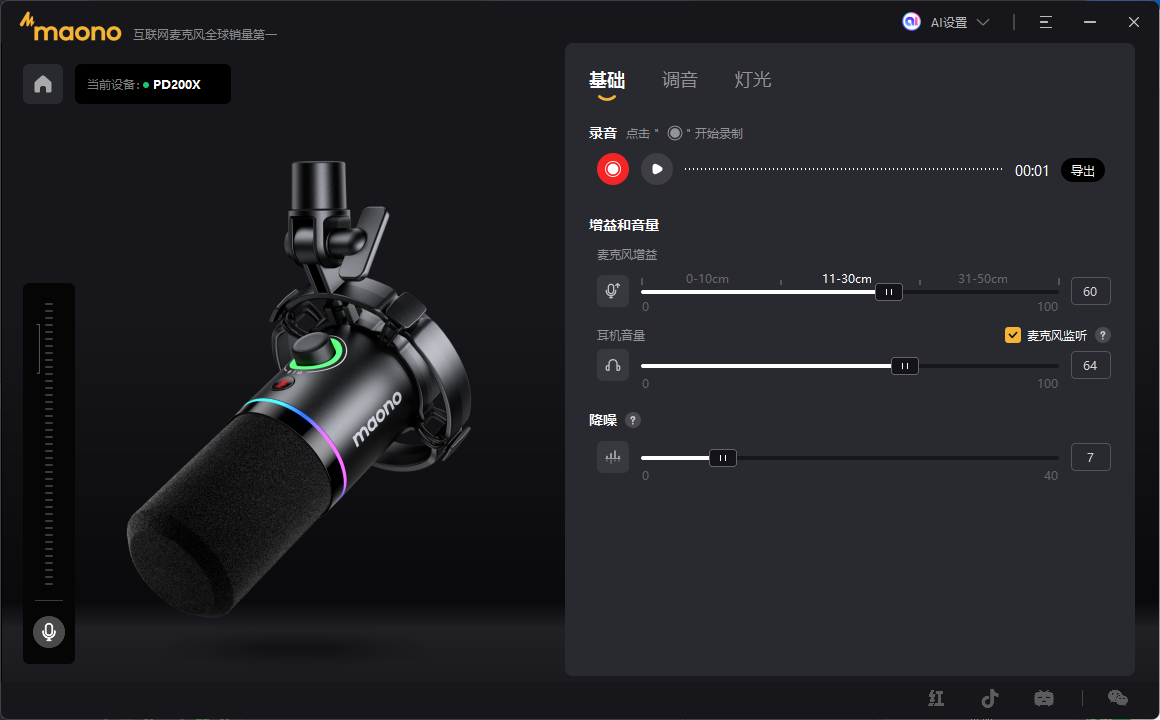
10:50
10:56
前途无量电视剧
13:26
理想之城电视剧
13:27
Sub clock()
Application.OnTime Now + TimeValue("00:00:01"), "clock"
Range("B4").Value = Now()
End Sub
Application.OnTime Now + TimeValue("00:00:01"), "clock"
Range("B4").Value = Now()
End Sub
00:34
Sub Digital_clock()
Range("B3").Value = Now
Application.OnTime Now + TimeValue("00:00:01"), "Digital_clock"
End Sub
Range("B3").Value = Now
Application.OnTime Now + TimeValue("00:00:01"), "Digital_clock"
End Sub
00:37
【B890秒发货】全新库存管理软件多用户多仓库进出库管理系统
16:56
通过网盘分享的文件:Y0827-全新库存管理软件多用户多仓库
链接: https://pan.baidu.com/s/15QOid0pWDD5jJ_dlES1rdQ 提取码: bdqs
--来自百度网盘超级会员v4的分享
链接: https://pan.baidu.com/s/15QOid0pWDD5jJ_dlES1rdQ 提取码: bdqs
--来自百度网盘超级会员v4的分享
17:08
16:10
16:14
DJ1281
19:20
19:18
19:42
13:27
19:55
22:48
20:12
92410105MAK4PCAY89
16:14

13:58
.jpeg)
13:59
Ad123456
11:15

23:50
vless://928e6cce-8ced-4243-9a48-a6642edd09b0@64.64.232.209:13779?encryption=none&flow=xtls-rprx-vision&security=reality&sni=tesla.com&fp=chrome&pbk=llTyp52oRXnJmQ3I9UUrmlwbMA79B-wLCRHCu-8dLGg&sid=af1bdd293097b664&spx=%2F&type=tcp&headerType=none#%5B%E6%9C%BA%E6%88%BF%5D-%E7%BE%8E%E5%9B%BD-%E7%BE%8E%E5%9B%BD%20%E5%8A%A0%E5%88%A9%E7%A6%8F%E5%B0%BC%E4%BA%9A%E5%B7%9E%20%E6%B4%9B%E6%9D%89%E7%9F%B6%20%E2%80%94%20%E6%90%AC%E7%93%A6%E5%B7%A5-64.64.232.209
vless://928e6cce-8ced-4243-9a48-a6642edd09b0@64.64.242.171:13779?encryption=none&flow=xtls-rprx-vision&security=reality&sni=tesla.com&fp=chrome&pbk=llTyp52oRXnJmQ3I9UUrmlwbMA79B-wLCRHCu-8dLGg&sid=af1bdd293097b664&spx=%2F&type=tcp&headerType=none#%5B%E6%9C%BA%E6%88%BF%5D-%E7%BE%8E%E5%9B%BD-%E7%BE%8E%E5%9B%BD%20%E5%8A%A0%E5%88%A9%E7%A6%8F%E5%B0%BC%E4%BA%9A%E5%B7%9E%20%E6%B4%9B%E6%9D%89%E7%9F%B6%20%E2%80%94%20%E6%90%AC%E7%93%A6%E5%B7%A5-64.64.242.171
vless://928e6cce-8ced-4243-9a48-a6642edd09b0@45.78.79.106:13779?encryption=none&flow=xtls-rprx-vision&security=reality&sni=tesla.com&fp=chrome&pbk=llTyp52oRXnJmQ3I9UUrmlwbMA79B-wLCRHCu-8dLGg&sid=af1bdd293097b664&spx=%2F&type=tcp&headerType=none#%5B%E6%9C%BA%E6%88%BF%5D-%E7%BE%8E%E5%9B%BD-%E7%BE%8E%E5%9B%BD%20%E5%8A%A0%E5%88%A9%E7%A6%8F%E5%B0%BC%E4%BA%9A%E5%B7%9E%20%E6%B4%9B%E6%9D%89%E7%9F%B6%20%E2%80%94%20%E6%90%AC%E7%93%A6%E5%B7%A5-45.78.79.106
vless://928e6cce-8ced-4243-9a48-a6642edd09b0@64.64.242.171:13779?encryption=none&flow=xtls-rprx-vision&security=reality&sni=tesla.com&fp=chrome&pbk=llTyp52oRXnJmQ3I9UUrmlwbMA79B-wLCRHCu-8dLGg&sid=af1bdd293097b664&spx=%2F&type=tcp&headerType=none#%5B%E6%9C%BA%E6%88%BF%5D-%E7%BE%8E%E5%9B%BD-%E7%BE%8E%E5%9B%BD%20%E5%8A%A0%E5%88%A9%E7%A6%8F%E5%B0%BC%E4%BA%9A%E5%B7%9E%20%E6%B4%9B%E6%9D%89%E7%9F%B6%20%E2%80%94%20%E6%90%AC%E7%93%A6%E5%B7%A5-64.64.242.171
vless://928e6cce-8ced-4243-9a48-a6642edd09b0@45.78.79.106:13779?encryption=none&flow=xtls-rprx-vision&security=reality&sni=tesla.com&fp=chrome&pbk=llTyp52oRXnJmQ3I9UUrmlwbMA79B-wLCRHCu-8dLGg&sid=af1bdd293097b664&spx=%2F&type=tcp&headerType=none#%5B%E6%9C%BA%E6%88%BF%5D-%E7%BE%8E%E5%9B%BD-%E7%BE%8E%E5%9B%BD%20%E5%8A%A0%E5%88%A9%E7%A6%8F%E5%B0%BC%E4%BA%9A%E5%B7%9E%20%E6%B4%9B%E6%9D%89%E7%9F%B6%20%E2%80%94%20%E6%90%AC%E7%93%A6%E5%B7%A5-45.78.79.106
21:50
10元精修,你管这叫修图???? https://xhslink.cn/o/9oCy218FIBx
来【小红书】围观这篇笔记!
来【小红书】围观这篇笔记!
11:42
sub://aHR0cHM6Ly92bi54c3YubWUvY2xhc2g/Y29uZmlnPWh5c3RlcmlhMiUzQSUyRiUyRjJiNzFkZGNiLTRiN2EtNDQzNC04ZDM2LTllYWUyYmNmNGZjMSU0MDE1Ni4yMzEuMTE3LjIzOSUzQTQwNjE4JTNGYWxwbiUzRGgzJTI2aW5zZWN1cmUlM0QxJTIzJUU2JTk3JUE1JUU2JTlDJUFDaDIlMEF2bGVzcyUzQSUyRiUyRjA4N2U1YzBlLTI2NWItNGUwMC1iZDVmLWVhZmFmMTkwNzE3MyU0MDE1Ni4yMzEuMTE3LjIzOSUzQTQwNjI4JTNGZW5jcnlwdGlvbiUzRG5vbmUlMjZzZWN1cml0eSUzRHJlYWxpdHklMjZmbG93JTNEeHRscy1ycHJ4LXZpc2lvbiUyNnR5cGUlM0R0Y3AlMjZzbmklM0R3d3cuYW1hem9uLmNvbSUyNnBiayUzRFFQb1lUSjBQNWxCbzlORjNBQTBjdk5pb3d2Ymk0aWRRQi1ka0sxVUlqU3clMjZmcCUzRDIlMjMlRTYlOTclQTUlRTYlOUMlQUN2cyUwQSUwQSUwQSUwQSUwQXZsZXNzJTNBJTJGJTJGOWY1YTMwZjAtNmFlOC00MmQyLWEzYzQtMWVhN2VkOGRlMDc1JTQwNDcuODYuODkuMTAlM0E0MDYxOCUzRmVuY3J5cHRpb24lM0Rub25lJTI2c2VjdXJpdHklM0RyZWFsaXR5JTI2ZmxvdyUzRHh0bHMtcnByeC12aXNpb24lMjZ0eXBlJTNEdGNwJTI2c25pJTNEd3d3LmViYXkuY29tJTI2cGJrJTNEcnIyRG5nbEJmSkpDMjJpNmR6VVFoSmN0RW9RSDdQb210R0F3N1VXTjFuUSUyNmZwJTNENSUyMyVFOSVBNiU5OSVFNiVCOCVBRnZzJTBBaHlzdGVyaWEyJTNBJTJGJTJGZGU2Y2Y5MGEtNDM5Yi00ZDk1LWEzNTUtMTkxNDZkYjllMWFiJTQwNDcuODYuODkuMTAlM0E0MDYyOCUzRmFscG4lM0RoMyUyNmluc2VjdXJlJTNENiUyMyVFOSVBNiU5OSVFNiVCOCVBRmgyJTBBJTBBJTBBaHlzdGVyaWEyJTNBJTJGJTJGNGNjMDFjZGMtZjk2NS00NjQ5LWE4M2YtMzg3ZDk0N2NmNmNmJTQwMTUxLjI0Mi4xNjQuNTAlM0E0MDYxOCUzRmFscG4lM0RoMyUyNmluc2VjdXJlJTNENyUyMyVFNiU5NyVBNSVFNiU5QyVBQ2gyeSUwQXZsZXNzJTNBJTJGJTJGNTZiZmM5MTUtMzQ5MS00MjBjLThmZDMtNTFlNzcwNzgyMjFkJTQwMTUxLjI0Mi4xNjQuNTAlM0E0MDYyOCUzRmVuY3J5cHRpb24lM0Rub25lJTI2c2VjdXJpdHklM0RyZWFsaXR5JTI2ZmxvdyUzRHh0bHMtcnByeC12aXNpb24lMjZ0eXBlJTNEdGNwJTI2c25pJTNEYXdzLmFtYXpvbi5jb20lMjZwYmslM0Rmc1poaHlCa2JXeUdzLUxxM2tuUlk0TU5pSVBkbE5LTWpLSEo3endUTWcwJTI2ZnAlM0Q4JTIzJUU2JTk3JUE1JUU2JTlDJUFDdnN5JTBBJTBBJTBBJTBBJTBBdmxlc3MlM0ElMkYlMkY0Yjg3MWU4Ni1iMjU0LTQ1YWYtOWZhMC1hNjIxZDllY2E1ZmYlNDAxNTQuMjIyLjI1LjE4MiUzQTQwNjE4JTNGZW5jcnlwdGlvbiUzRG5vbmUlMjZzZWN1cml0eSUzRHJlYWxpdHklMjZmbG93JTNEeHRscy1ycHJ4LXZpc2lvbiUyNnR5cGUlM0R0Y3AlMjZzbmklM0Rhd3MuYW1hem9uLmNvbSUyNnBiayUzRGxDaWtmZjlYOUY4Z2otMmJrQ0RiU2w2ckpQWWc0ZE1BNE1qWVFXdlR5Q1UlMjZmcCUzRDMlMjMwMDd2cyUwQWh5c3RlcmlhMiUzQSUyRiUyRmNhYjMwNWEwLWNkYmItNDkyYy05YTZkLTg1YjRhNTI5MGIyZSU0MDE1NC4yMjIuMjUuMTgyJTNBMjI2MTglM0ZhbHBuJTNEaDMlMjZpbnNlY3VyZSUzRDQlMjMwMDdoMiUwQSUwQSUwQSUwQSZzZWxlY3RlZFJ1bGVzPSU1QiU1RCZjdXN0b21SdWxlcz0lNUIlNUQ
22:34
09:28
通过网盘分享的文件:9.28旭
链接: https://pan.baidu.com/s/1XUK20-vHN1_Fgg_Z7H-JIQ?pwd=dedj 提取码: dedj
--来自百度网盘超级会员v4的分享
链接: https://pan.baidu.com/s/1XUK20-vHN1_Fgg_Z7H-JIQ?pwd=dedj 提取码: dedj
--来自百度网盘超级会员v4的分享
10:08
5
10:08
通过网盘分享的文件:9.30旭
链接: https://pan.baidu.com/s/1Gq931sFo06QL1s6QFgl4vg?pwd=jssg 提取码: jssg
--来自百度网盘超级会员v4的分享
10
链接: https://pan.baidu.com/s/1Gq931sFo06QL1s6QFgl4vg?pwd=jssg 提取码: jssg
--来自百度网盘超级会员v4的分享
10
09:32
通过网盘分享的文件:10.4旭
链接: https://pan.baidu.com/s/1jtXqxjbToQQPI_vZmeLN1A?pwd=wrph 提取码: wrph
--来自百度网盘超级会员v4的分享
16
链接: https://pan.baidu.com/s/1jtXqxjbToQQPI_vZmeLN1A?pwd=wrph 提取码: wrph
--来自百度网盘超级会员v4的分享
16
09:39
405 378 559
10:50
通过网盘分享的文件:建底片
链接: https://pan.baidu.com/s/1yh4c_eN3FHpECxIkn_ihOQ?pwd=iv87 提取码: iv87
--来自百度网盘超级会员v4的分享
链接: https://pan.baidu.com/s/1yh4c_eN3FHpECxIkn_ihOQ?pwd=iv87 提取码: iv87
--来自百度网盘超级会员v4的分享
21:25
通过网盘分享的文件:10.6旭
链接: https://pan.baidu.com/s/1MeRdN9liRivH8-vB5RyvuQ?pwd=u5dd 提取码: u5dd
--来自百度网盘超级会员v4的分享
16
链接: https://pan.baidu.com/s/1MeRdN9liRivH8-vB5RyvuQ?pwd=u5dd 提取码: u5dd
--来自百度网盘超级会员v4的分享
16
21:26